Many Android phones end up forgotten in a drawer when we upgrade , even though their hardware is still perfectly adequate for basic tasks. Instead of letting them gather dust, you can repurpose them as a small home network server, whether for sharing files, setting up a private cloud, or even experimenting with more advanced services.
With a little patience and the right apps, a smartphone can become a very basic but fully functional NAS within your local network . It won't replace a professional server, but it's useful for storing small backups, streaming videos and photos, or centralizing documents without relying on Google Drive, Dropbox, or other third-party services. However, it's important to understand its limitations and in what situations it's truly worthwhile to set up this device.
From old mobile phone to home file server
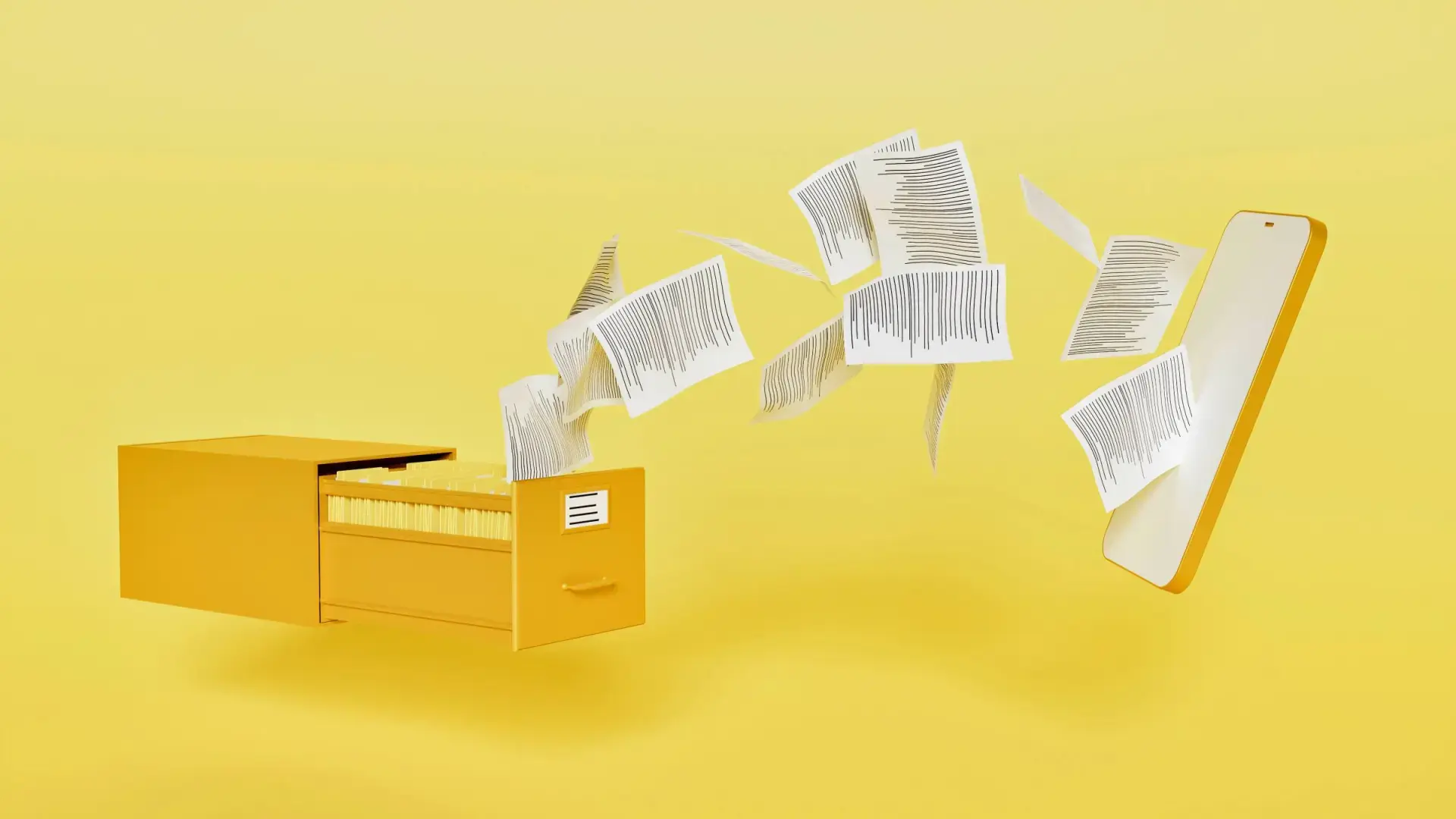
The most straightforward way to use a phone as a home NAS is to turn it into a file server accessible from other devices on the network . On Android, this is simpler than it seems: there are file explorers like MiXplorer or similar apps that allow you to set up an SMB server (the typical Windows protocol) or WebDAV server to share folders from internal storage or a microSD card.
By activating this type of server, the mobile device functions as a network resource that any PC, laptop, or mobile device can access as long as it's connected to the same router. From the file explorer in Windows, Linux, or macOS, you can open, copy, or delete files as if it were just another shared drive on the local network.
The typical setup for these applications usually includes creating a basic username and password to restrict access , choosing which folders to share, and defining the communication port. It's important to disable Android's aggressive battery optimizations to prevent the service from closing in the background and to keep the phone plugged in to avoid it shutting down during long backups.
With this simple solution, you can have a small home server to store photos, documents, or music . Performance depends on your phone's Wi-Fi and the read/write speed of its internal memory or microSD card, so don't expect spectacular transfer speeds. Even so, for occasional backups, sharing multimedia within your home, or as auxiliary storage, it's usually more than enough.
Some manufacturers include built-in options for sharing content on the local network, for example, through DLNA-compatible media servers . On many Android devices, you can enable something like "Media Server" or "Share Content" in the device connection settings, choose whether to share photos, music, and videos, and allow any TV, console, or PC on the network to automatically detect the phone as a content source.
One step further: using your mobile phone as a private cloud
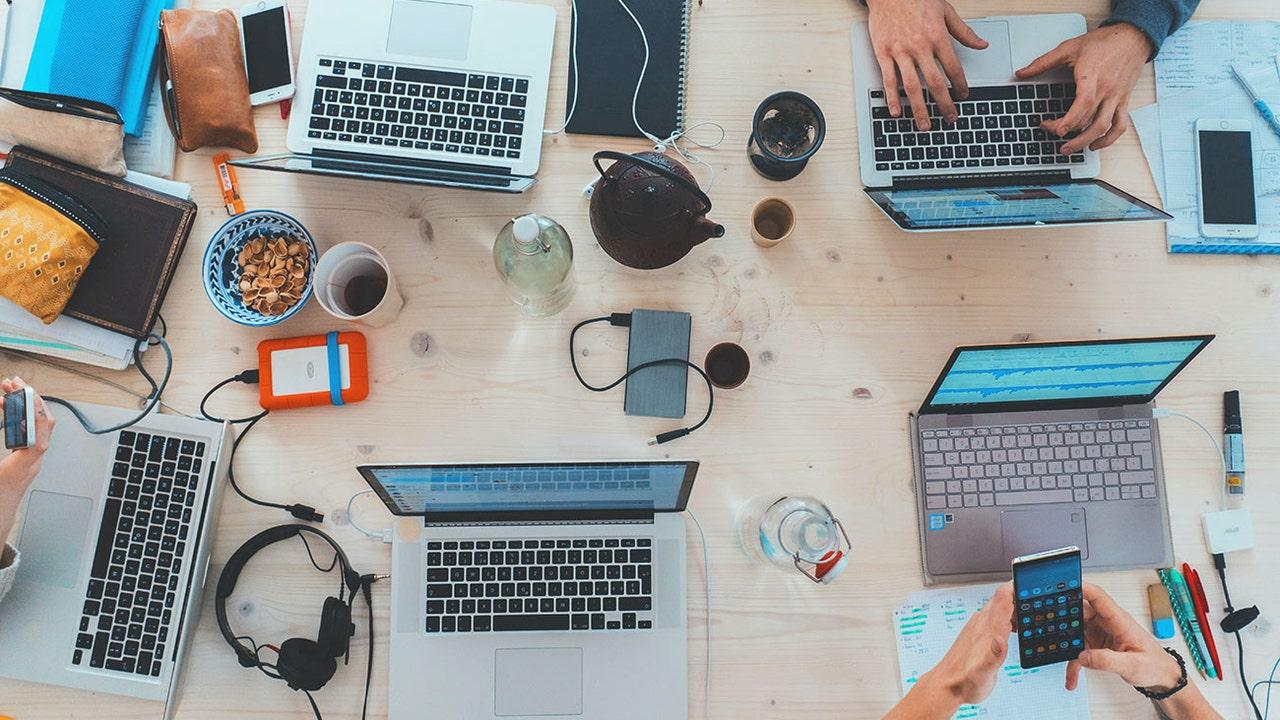
If you're looking for something more like Google Drive but for home use, you can use your phone as a personal cloud server accessible from multiple devices . The idea is that the phone acts as the "brain," and storage is expanded using an external drive: USB flash drives, SSDs, or HDDs connected via USB-OTG.
The first thing to check is that the device supports USB OTG and, if possible, dual-band Wi-Fi . OTG support will allow you to plug in a USB-C/OTG hub or adapter to connect an external drive, while 5 GHz Wi-Fi will reduce bottlenecks in internal network transfers. The better the Wi-Fi chip and the more RAM the phone has, the smoother the connection will be when multiple clients are reading or writing simultaneously.
Regarding storage space, ideally you should connect an external hard drive or SSD with ample capacity , as the internal memory of an older mobile phone is usually insufficient to function as a NAS. You can opt for a 1-2 TB HDD you already have at home or a large USB flash drive (for example, 128 or 256 GB) if your plan is only to share documents and a small photo library.
Once storage is sorted, you need good software to set up your private cloud . Solutions like Nextcloud or ownCloud are traditionally installed on Linux servers, but they can also run on ARM environments, either directly (if you're running Linux on your phone) or through containers, depending on the level of experiment you want to run. These platforms allow you to synchronize files, share folders with specific users, access them via a web browser, and even add calendars and contacts.
The essential requirement for this home cloud to be even minimally usable is a stable, high-speed network connection . At home, ideally your mobile device should connect via Wi-Fi on the 5 GHz band, and your router should have Gigabit ports to avoid throttling traffic. If you want to allow access from outside your home, you'll need to configure ports, DNS settings, and, above all, pay close attention to security.
Advanced setups: Linux, containers and mini homelab
For those who enjoy tinkering and find Android apps lacking, there's the option of transforming your phone into a mini Linux server . Projects like postmarketOS allow you to install a lightweight Linux-based operating system on certain smartphones, essentially turning them into small, always-on ARM computers and Linux mobiles.
In these advanced scenarios, it's common to unlock the bootloader, flash an alternative ROM, and dedicate the device exclusively to server tasks . From there, you can access it via SSH, install classic services (web server, media server, VPN, etc.), or even set up Docker containers with different stacks: one container for Nextcloud, another for a download server, another for a media catalog, and so on.
If the hardware is up to par—a good ARM processor, 4-6 GB of RAM, and reasonable storage—the phone becomes a fantastic mini homelab for learning system administration : managing services, automating backups, configuring users, network permissions, and so on. All this with minimal power consumption and without needing a full PC running 24/7.
That doesn't mean there aren't clear limitations compared to a commercial x86 server or NAS. CPU performance in demanding tasks, wireless network bandwidth, I/O latency, and the lack of dedicated ports like Ethernet or SATA define the limits of what these types of setups can offer. Furthermore, alternative ROMs require some maintenance (kernel updates, security patches) and aren't always as stable as a Linux distribution designed for servers.
In practice, this type of "Linux server on your phone" makes sense if you want to experiment with containers and services without spending money on new hardware . For production environments or for storing very important data, it's still wiser to use dedicated equipment, whether it's a brand-name NAS, a repurposed PC with FreeNAS/Unraid, or even a well-built Raspberry Pi.
Connect USB drives and hubs without dying in the attempt
When you start connecting external hard drives to your phone, reasonable questions arise: how do you power both your phone and the USB drives simultaneously? Will the battery last if I leave it plugged in all day? For best practices on how to effectively charge your phone , the key is to use a USB hub with an external power supply (powered by its own transformer) or an OTG adapter that allows simultaneous charging and data transfer.
Most mobile phones can't provide enough power through their USB port to keep a 3,5" HDD spinning and simultaneously charge their own battery . That's why "powered" hubs are used: the hub's charger powers the drives and, in some models, also keeps the phone charged through the same port. It's important to check OTG compatibility and, if possible, use 2,5" SSDs or HDDs that consume less power.
Another common problem with many Android devices, as reported by some users of models like the OnePlus 5T, is that the system kills background processes when the screen turns off , even with power-saving profiles disabled. This can break WebDAV servers, SMB servers, or any app that tries to remain continuously active.
To mitigate this, you have to wrestle with the manufacturer's options: disabling battery optimizations for the server app, locking it in memory, preventing it from being cleaned when closing multitasking , etc. In some extreme cases, there's no other option than rooting the device, changing the ROM, or resorting to specific tools that prevent Android from "freezing" certain processes.
In any case, if the goal is to have a reasonably reliable server 24/7, it's advisable to run tests before entrusting it with important data: leave long backups running, check that the service doesn't crash after several hours , monitor the phone's temperature, and make sure the charger and hub don't overheat.
Scenarios where it makes sense to use a mobile device as a NAS
Not everyone needs a professional server. A repurposed mobile phone can be a great fit when storage and service needs are modest . For example, as a central repository for family photos, to synchronize work documents between two or three computers, or as a small music and movie library accessible from the living room TV.
It's also a fantastic learning tool. Setting up a home server with a phone lets you experiment with networks, permissions, protocols, and backups without any real risk: if something goes wrong, you just reinstall the app or restore the system, and you're good to go. It's a cheap and safe way to get into the world of NAS devices, network services, and, if you're feeling adventurous, containers and Linux servers.
Another useful application is using your mobile device as an intermediate point for small or emergency backups . For example, you can schedule laptops in your home to periodically back up key documents to the mobile NAS, knowing that this data will then end up on a main NAS, an external hard drive, or another more robust backup system.
However, this approach isn't designed to handle many simultaneous connections, large volumes of data, or services requiring high availability. If you need a reliable server for intensive workloads, with multiple users simultaneously, high speed, and redundancy , the most sensible option remains a home-grade NAS or a server built by repurposing an old PC with dedicated software.
This type of project is perfect when you're looking to save money, reduce electronic waste, and satisfy your tinkering urges . If you aspire to build something more serious or critical, a mobile phone can serve as a preliminary testing ground before moving on to more powerful solutions.
Advantages and disadvantages of turning a mobile phone into a NAS
Among the advantages, the cost is hard to beat: reusing an old phone is practically free , aside from a cable or OTG adapter. Furthermore, it's a way to extend the life of a device that would otherwise end up as electronic waste. In times of such planned obsolescence, getting one more use out of something is always welcome.
Another clear advantage is flexibility: depending on the software you install, you can have a file server via SMB/WebDAV, a Nextcloud-type cloud service, a DLNA media server , a repository for automatic backups of your photos, or even a small home lab with containers. All of this with negligible energy consumption compared to a PC running all day.
Furthermore, its size and noise level are advantages. A mobile device takes up hardly any space, can be hidden behind the router without anyone noticing , and doesn't create fan noise. This is especially useful in small apartments where you don't want a large tower or NAS acting as a permanent "radiator."
On the downside, network limitations are significant. Most phones rely on Wi-Fi, which, compared to a NAS with a Gigabit Ethernet port or 2.5G , becomes noticeable as soon as you start transferring large files. If the router isn't particularly good or there's a lot of congestion on the 2,4 GHz band, transfers can be frustratingly slow.
It also doesn't help that storage is limited to internal memory, microSD cards, and USB drives, with no native RAID support or hot-swappable bays. You can't properly install two to four SATA drives and create a redundant system like you would in a proper NAS. If a USB HDD fails, everything on it is lost, so it's not advisable to entrust irreplaceable data to this setup without a solid external backup plan.
Another critical aspect is wear and tear and temperature. Keeping your phone plugged into the charger 24/7 while transferring files and powering a hub can overheat the battery and shorten its lifespan. Although many devices manage charging well, it's still a good idea to place the setup in a well-ventilated area and check that the temperature doesn't spike during large backups.
Regarding software, Android isn't designed as a classic server system. You're dependent on app updates, aggressive power-saving policies, and manufacturer decisions that sometimes kill background processes without warning . An alternative ROM or a Linux distribution like postmarketOS can offer more control, but it also complicates configuration and maintenance, especially if you modify kernels and security patches.
Dedicated NAS vs. recycled mobile: what are the differences?
To fully understand what you gain and lose by using a mobile phone as a NAS, it's helpful to compare it to a commercial NAS or one built with a PC/Raspberry Pi . Brand-name devices (Synology, QNAP, etc.) offer bays for multiple drives, RAID support, highly polished operating systems, and app stores with a multitude of ready-to-use services: media servers, downloads, backups, email, web hosting, chat, VPN, and more.
With a NAS like this, you can set up your own alternative to Dropbox, Google Photos, Gmail, or even local streaming platforms . They also feature user-friendly web interfaces and wizards that simplify complex tasks such as exposing the NAS to the internet using services like QuickConnect, DDNS, SSL certificates, and more. It's a much more "plug and play" product for users who don't want to deal with the technical aspects.
The other side of the coin is the price: a basic NAS with two bays and multi-terabyte drives represents a significant outlay compared to the zero cost of recycling a mobile phone . Even so, for those who handle large amounts of data or have serious backup needs, that investment is usually worthwhile due to the reliability, speed, and expansion options.
There's also the intermediate option of building your own NAS with an old PC or a Raspberry Pi . You can use solutions like FreeNAS/TrueNAS, Unraid, or other specialized distributions, which turn a regular computer into a storage server with advanced features . The hardware investment can be minimal if you already have a spare computer lying around, but the power consumption and space required will be greater than with a mobile phone.
Ultimately, the recycled mobile phone stands out above all as a cheap and educational entry point into the world of NAS devices . If you get used to centralizing files, automating backups, and using network services with this device, the subsequent leap to a professional NAS will be much more natural, and you'll know exactly what you need and what you don't.
Looking at the whole picture, the old smartphone converted into a NAS can become an unexpected ally for your home network: it won't replace a dedicated server when it comes to long-term performance and security, but as a DIY project, learning platform, and economical solution for sharing files and setting up your own small private cloud, it's a surprisingly valid option with much more utility than it seems at first glance.

Table of Contents
- 1 From old mobile phone to home file server
- 2 One step further: using your mobile phone as a private cloud
- 3 Advanced setups: Linux, containers and mini homelab
- 4 Connect USB drives and hubs without dying in the attempt
- 5 Scenarios where it makes sense to use a mobile device as a NAS
- 6 Advantages and disadvantages of turning a mobile phone into a NAS
- 7 Dedicated NAS vs. recycled mobile: what are the differences?