
If you use Linux daily, you've probably run into the same problem more than once: there's no native version of Adobe Photoshop for your distribution . Neither Ubuntu, nor Debian, nor any other distro has an official Adobe installer, which is baffling for many users coming from Windows or macOS who are used to working with this professional image editor.
Although it might seem like a huge limitation, the truth is that the Linux ecosystem has evolved tremendously. Today, there are several ways to run Photoshop on Linux or replace it with powerful free alternatives . From compatibility layers like Wine to virtual machines, and tools like PlayOnLinux or CrossOver, not forgetting open-source image editors like GIMP, Inkscape, or Darktable, which cover almost all everyday needs.
Why there's no native Photoshop on Linux and what the implications are
In recent years, open-source software has grown at an incredible pace, and Linux has gone from being a system for "geeks" to a completely viable option for home and professional users . Distributions like Ubuntu have simplified the installation, configuration, and management of programs to the point that many people are now using Linux as their primary or secondary operating system.
This popularity means that more and more people are discovering that, despite the large number of applications available, there are certain commercial tools that still lack a Linux version . The most prominent example in the field of design and photography is undoubtedly Adobe Photoshop, which remains officially limited to Windows and macOS.
Adobe does not provide native packages or installers for GNU/Linux and does not offer direct support for running Photoshop on these platforms . However, this does not mean you have to abandon your favorite distribution if photography or graphic design is part of your work: the community has developed very mature solutions to overcome this barrier.
On one hand, we have ways to install and run the Photoshop application itself on Linux using Windows compatibility . On the other hand, we find an ecosystem of free software programs that, together, cover almost everything Photoshop does, with the advantage that they run natively and are free.
Furthermore, all of this is supported by the philosophy that Linux is a very flexible system: you can mix free tools with proprietary software using Wine, virtual machines, and universal packages like Snap and Flatpak, which greatly facilitate the installation of complex applications on almost any modern distro.
Using Adobe Photoshop on Linux with Wine
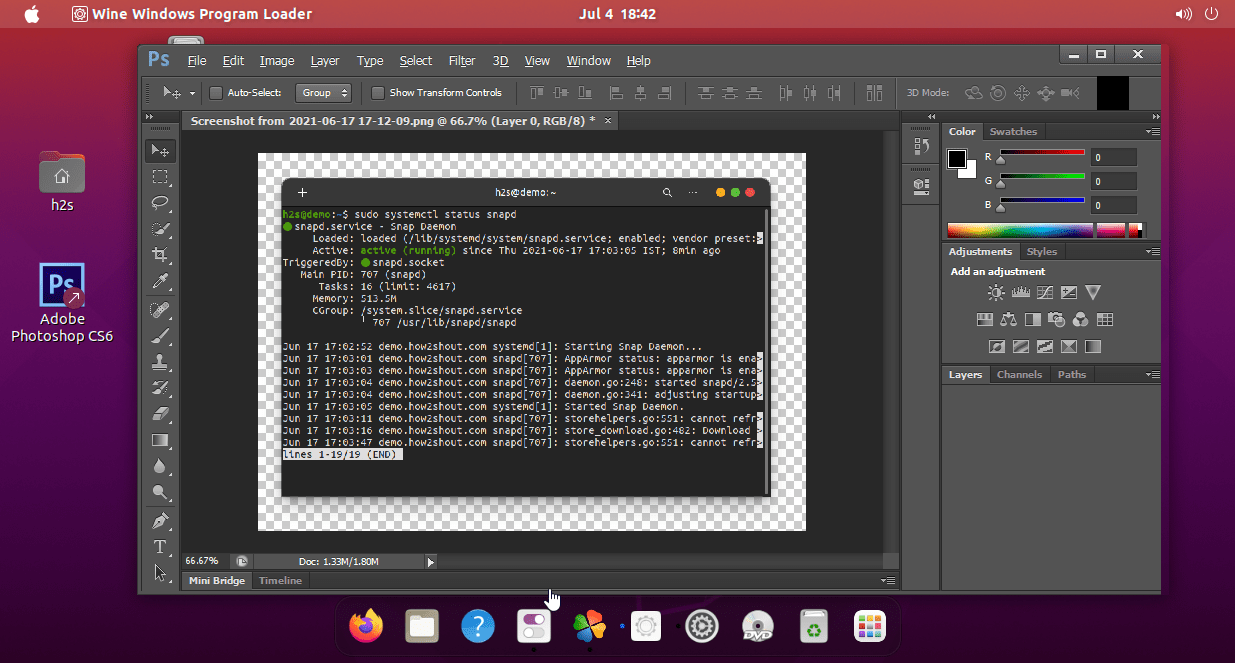
The most common way to run Photoshop on Linux is through Wine, a compatibility layer that allows you to run Windows applications directly on Linux without needing a full virtual machine . In practical terms, Wine translates Windows program system calls into their Linux equivalents.
Wine can run a multitude of applications, and Photoshop is one of the most popular choices among users. It's worth noting, however, that the latest versions of Photoshop don't always run equally well under Wine . Community testing indicates that one of the most stable versions is Photoshop CC 2015, which offers a very reasonable balance between modern features and compatibility.
In distributions like Ubuntu or Debian, it's advisable to prepare your system properly before installing Wine. If you're using a 64-bit system, it's recommended to enable support for 32-bit packages , because many Windows application components still depend on the 32-bit architecture. This is done from the terminal with something similar to:
Activate i386 architecture:sudo dpkg --add-architecture i386
sudo apt update
Once the i386 architecture has been added and the repositories updated, the next step is to incorporate the official WineHQ key and repository into your system . WineHQ typically offers more up-to-date and stable versions than the generic repositories of the distribution. The typical procedure involves downloading the key and adding it:
Download WineHQ key:wget -nc https://dl.winehq.org/wine-builds/winehq.key
sudo apt-key add winehq.key
After importing the key, you need to register the appropriate repository for your version of Ubuntu (or another similar distribution). An example for a specific Ubuntu release would be:
Register Wine repository:sudo add-apt-repository 'deb https://dl.winehq.org/wine-builds/ubuntu/ groovy main'
With this in place, you can now install the stable version of Wine with recommended support. The winehq-stable package is usually the most balanced option for working with applications like Photoshop.
Install Wine (stable):sudo apt install --install-recommends winehq-stable
In Debian-based distributions, it's also common to complete the installation with other useful components, such as winetricks and the 64-bit binaries, to maximize compatibility. An example of a combined command would be:
Add-ons and 64-bit:sudo apt update
sudo apt install winehq-stable winetricks wine64
During installation, the system will ask you to confirm the additional packages to be downloaded. Simply answer yes (for example, by typing "y" and pressing Enter) for the installation to continue until completion. Once Wine is installed, it's advisable to run the basic configuration tool:
Open Wine settings:winecfg
This initial wizard creates the Wine "prefix" (the environment where Windows programs will be installed) and allows you to adjust options such as the simulated Windows version or certain libraries . After this initial setup, you can install Photoshop just as you would on a Microsoft system.
If you have a compatible Photoshop DVD or installation image, or an installer downloaded from your Creative Cloud account, simply locate the setup.exe file and launch it with Wine . Usually, double-clicking it will suffice if your desktop environment automatically associates .exe files with Wine, or you can run something like:
Start Photoshop installer:wine setup.exe
The Photoshop installer should start just like on Windows, displaying its wizards and installation options. Following the usual steps, it will install within the Wine prefix as if it were a native program . Once finished, you'll find the Adobe Photoshop entry in the applications menu, usually within the category created by Wine.
To access it manually, you can open the Wine launcher, go to the programs section, and select the entry for “Adobe Photoshop CC 2015” or the version you have installed . In practice, if your hardware is decent, the performance is quite acceptable, and many of the usual photo editing, retouching, and compositing tools work smoothly.
PlayOnLinux and CrossOver: Guided Wine Configurations
Wine itself is very powerful, but it can sometimes be a bit tedious for those who don't want to deal with libraries, prefixes, and fine-tuning. That's where tools like PlayOnLinux and CrossOver come in, greatly simplifying the task of running Windows programs on Linux thanks to pre-configured environments.
PlayOnLinux is a free application that acts as a kind of catalog of compatible software. Its purpose is to create and manage different custom Wine "bottles" or prefixes for each program, applying patches, specific Wine versions, and special configurations to improve stability.
Installing PlayOnLinux on Debian or Ubuntu-based distributions is as simple as opening the terminal and running:
Installing PlayOnLinux:sudo apt update
sudo apt install playonlinux
Once installed, opening PlayOnLinux will display a library of programs and games. Simply use the built-in search function to locate "Photoshop" and select the version you wish to install . The tool itself will download and configure the most suitable Wine version, as well as create the perfect environment for that specific Photoshop.
The downside is that not all versions of Photoshop are available on the PlayOnLinux list , and in many cases, compatibility is even more limited than what you could achieve by manually tweaking Wine. However, for users who don't want to complicate things too much, it can be a very convenient solution.
In the commercial arena, we find CrossOver, a paid program also based on Wine, developed by CodeWeavers. CrossOver focuses on offering a more polished experience, with a very intuitive wizard, a larger database of supported programs, and professional technical support.
With CrossOver, users simply search for Photoshop within its catalog and follow a few guided steps to automatically create an optimized environment . One of its advantages is that, being a commercial product, it often receives specific adjustments and improvements for popular applications, which can make a significant difference in stability and performance.
Virtual machines: running Windows and Photoshop inside Linux
If you need to use the latest version of Photoshop with all its features, plugins, and services , or if your workflow depends on full integration with other Adobe tools, then using virtual machines might be the most practical solution.
A virtual machine (VM) allows you to install a full Windows system within your Linux system , isolated in its own environment but sharing physical hardware resources. One of the best-known programs for this is VirtualBox, very popular in desktop environments.
VirtualBox Installation:sudo apt install virtualbox
Next, you'll need to create a new virtual machine, allocate RAM, disk space, and other resources, and load a Windows ISO image to install the operating system within that VM . A valid Windows license is essential for the system to function legally.
Once Windows is installed in VirtualBox, the process is identical to that of a physical PC: you install Photoshop within that virtual machine as you normally would (either via Creative Cloud or with your preferred installer). From that point on, whenever you want to use Photoshop, you simply start the VM, log in to Windows, and run the program.
Keep in mind that, since it's a complete system within another system, performance will depend heavily on your computer's hardware . It's usually sufficient for light photo editing tasks, but in very demanding projects or those with many filters and layers, you might notice some slowdown compared to a native installation.
The upside is that, when running Photoshop on its "original" operating system, compatibility with plugins, fonts, and advanced features is usually complete . Furthermore, you can share folders between the virtual machine and your Linux host to easily move the images you're working with.
Free alternatives to Photoshop on Linux: GIMP, Inkscape and Darktable
Beyond solutions for running Photoshop, the Linux ecosystem offers several well-established tools that cover the vast majority of image editing and processing needs . If you're willing to slightly modify your workflow, you can almost completely do without Adobe software.
GIMP: the great classic of free photo editing
GIMP (GNU Image Manipulation Program) is probably the best-known alternative to Photoshop. It's a cross-platform image editor, available for Linux, Windows, and macOS, and has been around for so many years that it has become a de facto standard in the free software world.
The project is very much alive, and each new version of GIMP incorporates performance improvements, new tools, and interface tweaks, aiming to remain competitive against commercial options . While it doesn't fully replicate all of Photoshop's advanced features, it offers a vast array of possibilities for professional photo editing and montage.
Among its strengths are support for layers, masks, channels, multiple blending modes, and a large collection of filters and effects . Furthermore, GIMP stands out for its scripting capabilities: it's possible to automate workflows and create custom functions using various scripting languages.
On modern distributions, installing GIMP is very easy thanks to universal formats. If you prefer Snap, you can open the terminal and run:
Snap Package for GIMP:sudo snap install gimp
If your system relies more on Flatpak, there's also an official Flathub package that you can install with:
Flatpak package for GIMP:flatpak install flathub org.gimp.GIMP
With these options, GIMP is accessible to virtually any Linux user, regardless of their distribution . With some practice, many photographers and designers discover they can do almost all their daily work with this tool.
Inkscape: vector graphics and Photoshop support
Inkscape is a vector graphics editor designed for illustrations, logos, icons, and even complex designs. Its primary focus is on the SVG format, but it can also help cover some of the functions that many users associate with Photoshop , especially when it comes to working with shapes and vectors.
Among its most notable features are support for basic shapes, advanced strokes, text, markers, clones, gradients, patterns, groups, and transformations . It also offers alpha channel blending, layers, and powerful path operations such as unions, intersections, and shape differences.
Inkscape can also vectorize raster graphics to convert them into scalable elements , allows direct editing of SVG XML, and offers tools for placing text over paths and aligning complex compositions. It's a true Swiss Army knife for vector work.
In terms of formats, it can import PostScript, JPEG, PNG, TIFF, and other files, and export to PNG and even various vector-based formats . The project's goal is to provide a powerful, user-friendly tool that is fully compatible with XML, SVG, and CSS standards.
Like GIMP, Inkscape is available as Snap and Flatpak packages on most Linux distributions. To install it as a Snap, you can use:
Snap Package for Inkscape:sudo snap install Inkscape
If you prefer Flatpak, the usual command for Flathub is:
Flatpak package for Inkscape:flatpak install flathub org.inkscape.Inkscape
Thanks to these options, it's very easy to incorporate Inkscape into your graphic workflow on Linux , either as support for raster editors like GIMP, or as the main tool for designing logos, posters, or interfaces.
Darktable: Professional Photography Workflow
Darktable is primarily geared towards photographers who work with large volumes of RAW images. It's a photo editing and workflow management application that emphasizes non-destructive processing ; that is, your original files are never modified and all adjustments are saved as metadata.
The program functions as a virtual light table and darkroom, allowing you to organize, categorize, adjust, and export large collections of photographs . It's ideal for RAW shooters because it supports a wide variety of camera formats (CR2, NEF, RAF, and many others), as well as JPEG and high dynamic range files like HDR and PFM.
One of its greatest strengths is its use of GPU acceleration thanks to OpenCL , which makes many processing operations incredibly fast when you have a compatible graphics card. This makes a considerable difference when applying global and local corrections to hundreds of images.
Darktable uses XMP sidecar files and a fast internal database to store processing settings and metadata without altering the originals. It relies on the libexiv2 library to handle EXIF data, ensuring good compatibility with camera information.
Like the other applications mentioned, Darktable can be easily installed using Snap or Flatpak. If your system uses Snap, the typical command would be:
Snap Package for Darktable:sudo snap install darktable
If you prefer Flatpak and have Flathub set up, you can use:
Flatpak package for Darktable:flatpak install flathub org.darktable.Darktable
For photographers coming from solutions like Adobe Lightroom, Darktable represents a very serious alternative within the Linux ecosystem , with a philosophy and tools that are quite similar and without license costs.
Looking at the big picture, it's clear that Adobe's lack of a native Photoshop for Linux is no longer an insurmountable obstacle: between Wine, PlayOnLinux, CrossOver, and virtual machines, you can run highly functional versions of Photoshop . And if you choose to embrace free software, GIMP, Inkscape, and Darktable form a trio capable of covering everything from photo retouching to vector design and professional RAW processing.
Table of Contents
- 1 Why there's no native Photoshop on Linux and what the implications are
- 2 Using Adobe Photoshop on Linux with Wine
- 3 PlayOnLinux and CrossOver: Guided Wine Configurations
- 4 Virtual machines: running Windows and Photoshop inside Linux
- 5 Free alternatives to Photoshop on Linux: GIMP, Inkscape and Darktable