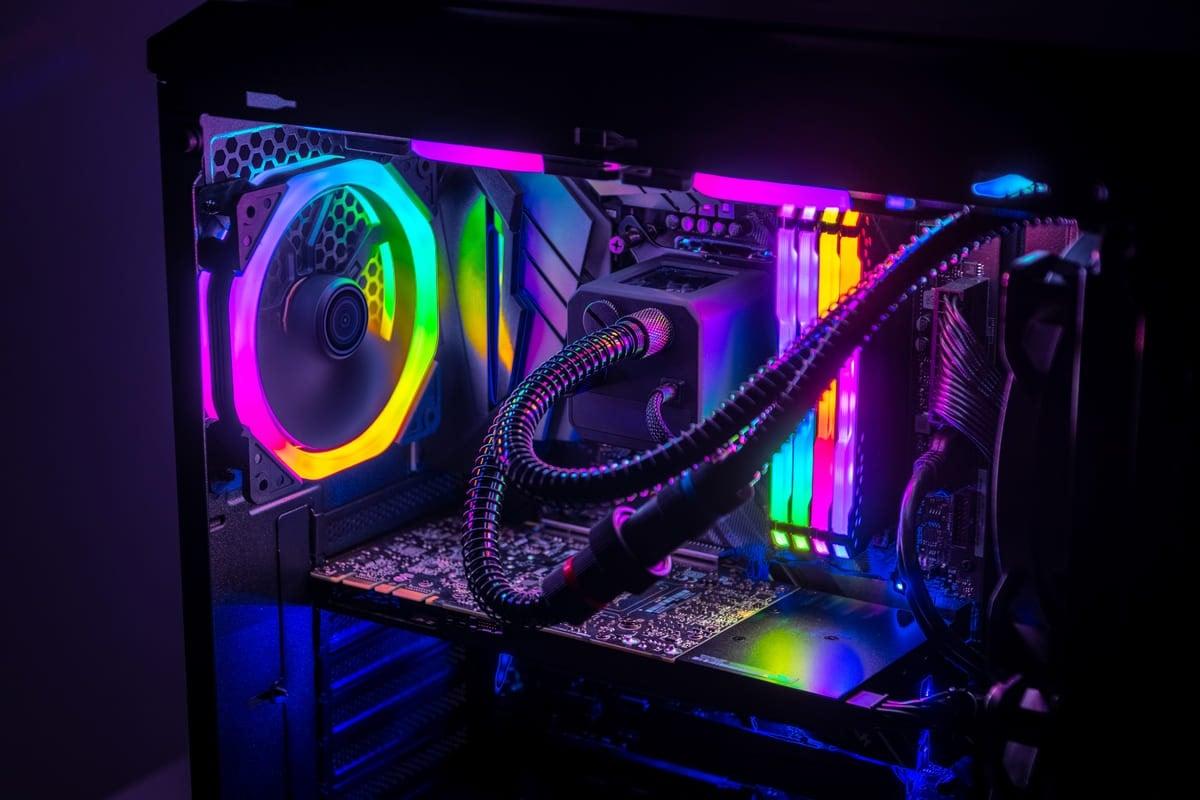
If you're interested in building, upgrading, or simply getting more out of your PC, mastering a few tricks for properly configuring hardware components makes a huge difference. It's not just about buying expensive parts, but about knowing what to choose, how to combine them, and how to fine-tune them so everything runs smoothly and without bottlenecks.
Throughout this article, you'll find a comprehensive guide, designed for both those building their first computer from scratch and those who have had a system for years and are considering upgrades. We'll explore what to expect from each component based on its intended use (office applications, gaming, editing, virtualization, etc.), compatibility tips, advice on choosing quality parts, and small details that are often overlooked but can cause many headaches later on.
Choose components based on the actual use of the PC
One of the biggest mistakes when configuring hardware is buying "blindly" without considering the workloads you'll actually be running . Building a PC for browsing and creating documents is not the same as building one for editing 4K video or playing games at ultra settings at 144Hz. Before choosing anything, it's essential to clearly define these usage categories, as they completely determine the choice of CPU, GPU, RAM, and storage.
On a modern PC, the most common tasks can be grouped into a few fairly clear categories : office applications, web browsing, multimedia, image/audio/video editing, code compilation, virtualization and emulation, gaming, 3D modeling and rendering, data encryption, and compression/decompression. Each of these puts different strain on the hardware, so it's best to adjust the settings to what you'll actually be using it for.
Also keep in mind that, while the graphics card is usually the most visible component, it's often smarter to balance the CPU, RAM, and storage rather than spending too much on a single piece that will then be limited by the rest. A well-balanced PC generally performs better than one with a very powerful component and the rest just adequate.
Even before thinking about specific components, it's worth preparing the environment: a comfortable, well-ventilated space with good connections and fast ports like Thunderbolt 3 (for example, a WiFi 6 router if you're going to do a lot of streaming or downloading) will prevent performance problems that have nothing to do with the power of the machine.
If your plan is to use your PC for "a bit of everything ," always aim for a middle ground: nothing extremely cheap that will quickly become inadequate, but also nothing too high-end hardware that you won't fully utilize. We'll see later how to balance this type of mixed setup.
Tips for office automation and basic work
For tasks such as writing documents, preparing presentations, or managing spreadsheets, the hardware requirements are lower, but there are several details to consider if you want a smooth office setup without overspending.
For the processor, a basic CPU with good single-core performance is usually sufficient: models like the AMD Ryzen 3 or Intel Core i3/Ultra 3 are more than adequate for Word, Excel, PDF, and similar applications. You don't need a huge number of cores; the important thing is that the system runs smoothly and can handle several windows open without lagging.
For basic office tasks, 8 GB of RAM is usually sufficient . You don't need particularly fast RAM, and in most cases you won't notice a difference between top-of-the-line and more basic memory, as long as you have enough capacity.
For storage, if you're on a tight budget, you can continue using a traditional mechanical HDD for documents , although ideally you should install an SSD as your main drive for much faster system boot times and program launches. It's not mandatory, but the improvement in performance is enormous.
As for graphics, the integrated GPU of the processor or motherboard is more than enough to display simple text and images; there's no point in investing in a dedicated graphics card just for office work, unless you're also going to do other more demanding tasks.
Where it's worth investing is in peripherals: a good, large, and clear monitor to avoid eye strain, a comfortable keyboard (ideally ergonomic or split), and a mouse that won't ruin your wrist. If you print a lot, a laser printer with automatic duplex printing and OCR scanning options can save you time and money in the long run.
A PC primarily used for browsing, social media, email, and cloud services doesn't need to be a beast, but modern browsers can be quite RAM and CPU hogs , especially if you tend to have dozens of tabs open.
For the processor, something like a quad-core Ryzen 3 or Core i3/Ultra 3 will be more than enough for most cases. Some browsers are starting to take better advantage of multi-core processors, so it's good to have a little headroom, especially if you often have several applications open in addition to your browser.
RAM makes a big difference: for light use, 8 GB may be enough, but if you're going to browse with many tabs, use Chrome, or have messaging apps, online office suites, and streaming music at the same time, it's much more comfortable to have 16 GB of RAM to avoid lag.
For storing the system and browser cache, an SSD significantly improves loading times and overall responsiveness. However, if your budget is tight, an HDD can still suffice in a basic computer , although you'll lose some speed in everyday use.
For video, the integrated GPU is sufficient even for 4K content, provided it's relatively modern. A more powerful GPU would only make sense if you plan on doing a lot of high-resolution streaming or using two 4K monitors simultaneously.
Peripherals depend on what you do online: if you write blog posts or participate in forums, prioritize a good keyboard with comfortable key travel . If you watch a lot of multimedia content, consider a good quality monitor and decent speakers. And if you want to get started in the world of streaming, a decent webcam and microphone make more of a difference than a small upgrade in your computer tower.
Tips for a multimedia PC (video, audio and streaming)
When your main goal is to watch series, movies, listen to music or manage multimedia collections, you don't need a workstation, but you do need somewhat more balanced hardware for smooth and uninterrupted playback.
For the processor, a Ryzen 3/5 or Core i3/Ultra 3/i5/Ultra 5 will be more than enough, especially since many streaming services handle the processing on their own servers. It's more important that the CPU has good performance per core and a decent clock speed than having a large number of cores.
The GPU is important if you're going to play 4K, HDR, or highly compressed video , as hardware decoding significantly reduces the load on the CPU. Almost all modern integrated graphics (iGPUs) support these codecs, so a dedicated entry-level graphics card is only worthwhile in very specific cases.
In terms of memory, 8 to 16 GB is fine, although it is important that the RAM has a reasonable speed , since there are quite a few continuous accesses when working with video and audio data streams.
Ideally, for storage, you should combine an SSD for the system and applications with a larger capacity HDD for your media library , especially if you store 4K videos or uncompressed audio files, which take up a lot of space.
In multimedia, peripherals are key: a good monitor or a TV connected via USB-C to HDMI with good color reproduction, and a decent sound system (soundbars, 2.1 speakers, quality headphones) will have a much greater impact on your experience than upgrading your processor by a couple of levels.
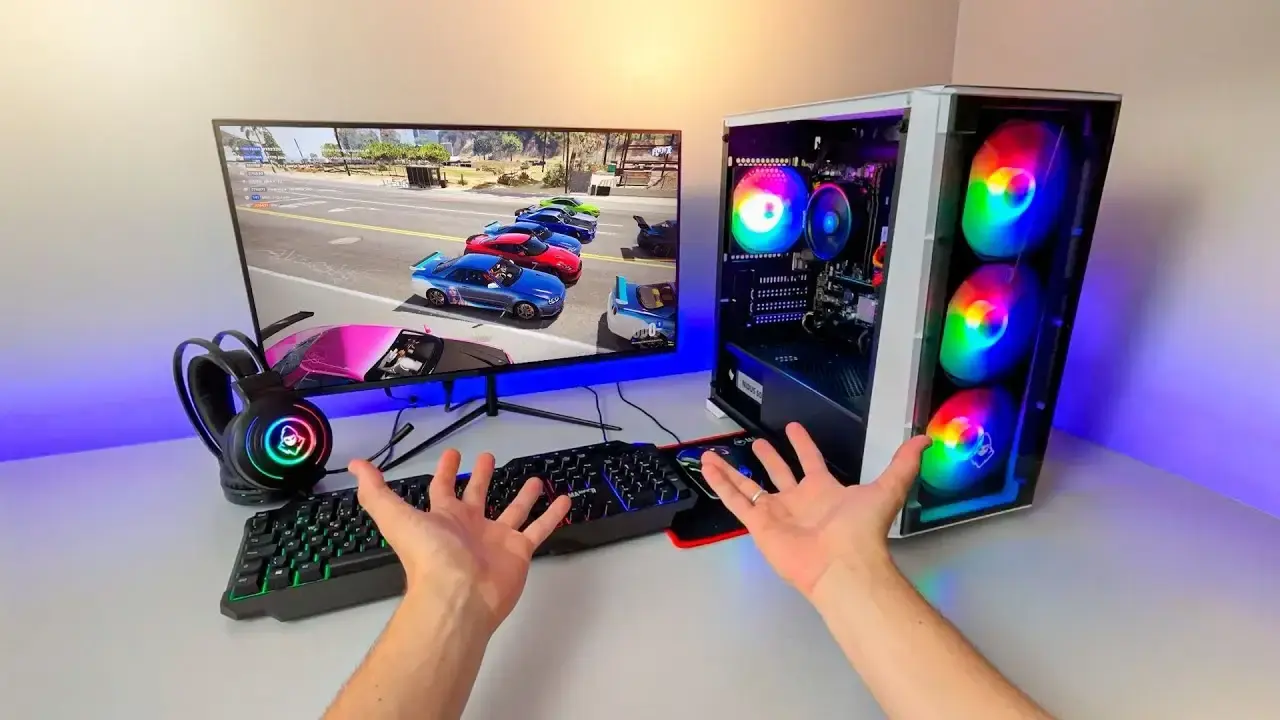
Image, audio and video editing: demanding configuration
If you work with Photoshop, Premiere, DaVinci Resolve, graphic design tools, or audio editing software, you need a computer capable of handling demanding projects without crashing . This is where things get serious, because the CPU, GPU, and RAM all matter—a lot.
For your processor, forget about the low-end models: focus on an AMD Ryzen 7 or Intel Core i7/Ultra 7 or higher , with multiple cores and threads to accelerate filtering, rendering, and encoding. While you don't need as much power for photos and audio as you do for 4K video or higher, when editing high-resolution material, a more powerful CPU significantly reduces wait times. Consult the Intel and AMD processor guide to help you choose between models.
The graphics card becomes crucial in video editing and effects, as many programs delegate a significant portion of the work to the GPU. Ideally, you want a dedicated mid-to-high-end GPU ; you don't need to go for a top-of-the-line gaming card, but you do need something with sufficient memory and good support for codecs and acceleration APIs.
For large projects , 16-32 GB of RAM is a reasonable amount to aim for . With less than 16 GB, the program is likely to run out of memory and start using disk space, causing crashes or unexpected closures when you least want it.
For storage, combine a fast SSD for the operating system, software, and temporary files with one or more high-capacity HDDs or SSDs for your project libraries . In intensive workflows, you can even reserve a dedicated SSD just for caches and temporary files from editing programs.
Don't neglect peripherals: for design and video, a monitor with good color space coverage, decent calibration, and high resolution is essential . For audio, a good speaker system or studio monitors will help you mix accurately, and quality headphones are indispensable if you work in noisy environments.
Code compilation and development
If you work in software development, especially on large projects like kernels, game engines, or complex applications, you'll notice a huge difference between a basic build machine and one that's properly sized for compiling . Every second you save on repetitive builds translates into increased productivity.
In this scenario, the CPU is critical: the more cores and threads you have, the better you can parallelize builds with multiple jobs . A Ryzen 7/9 or Core i7/9/Ultra 7/9 range provides excellent headroom, especially if you frequently compile with `-j high` in tools like `make` or `Ninja`.
RAM also matters, as development environments, resource-intensive IDEs, virtual machines, and containers can easily consume memory. For a serious professional development environment, 16-32 GB of RAM is a very reasonable amount , especially if you also work with local databases or multiple services simultaneously.
In terms of storage, a fast NVMe SSD drastically reduces read and write times for code files, dependencies, and intermediate binaries. While it might seem like only the CPU matters, a slow disk can significantly impact compilation times .
As an extra tip, if you use many virtual machines or containers to test different environments, you should also consider the recommendations in the virtualization section, because they overlap considerably with the needs of a modern developer.
Virtualization and emulation: many machines, many resources
When you start setting up labs with multiple virtual machines, test environments, or complete system emulators, the load on the hardware skyrockets. Each virtual machine needs its share of CPU, RAM, and storage, so hardware with many cores and plenty of memory is essential.
For CPUs, more is better: if you're going to have several virtual machines running simultaneously, consider high-end processors like the Ryzen 9 or Core i9/Ultra 9 , and even Threadripper-type platforms in extreme scenarios. It's also important that the processor supports hardware virtualization technologies like Intel VT-x or AMD-V to improve hypervisor performance.
RAM is shared between the host system and the virtual machines, so it's very easy to run out. In serious virtualization environments, it's common to have at least 32-64 GB of RAM , and in some cases (complex labs, many VMs, or large databases) even more than 128 GB.
Regarding storage, each virtual disk occupies several gigabytes or hundreds of gigabytes, so you need high-capacity SSDs, ideally starting at 4 TB if you're going to run many VMs. If your budget doesn't allow for that many SSDs, a large HDD can serve as a secondary storage tier for less critical machines.
In terms of peripherals, you don't need anything special, although a multi-monitor system is very helpful for comfortably running several machines simultaneously. It's one of those cases where a good screen layout improves productivity more than a small CPU frequency increase.
Gaming: Getting the most out of games
In a gaming PC, the graphics card is king. The CPU, RAM, and storage matter, yes, but the bulk of your FPS will depend on having a mid-to-high-end GPU well supported by the rest of the components.
To play games at good quality and with high refresh rates, consider GPUs like the NVIDIA RTX 4070/4080 or AMD Radeon RX 7700/7800 and above, with at least 16 GB of VRAM if you want to play current and upcoming titles smoothly. You don't need to go for the most expensive model in the range, but you should avoid the cut-down versions with very little memory.
In terms of processors, most games still don't scale well to very high core counts, so a CPU with good single-core performance, high clock speed, and ample cache is more important . A current Ryzen 5 or Core i5/Ultra 5 with 6 cores is usually excellent for most titles, except in very specific cases.
RAM has become a key factor in modern gaming. These days, a reasonable minimum is 16 GB of RAM, preferably fast DDR5 , and if you plan to play while streaming, recording video, or have many things running in the background, consider 32 GB to be on the safe side.
In terms of storage, SSDs are no longer a luxury, but almost mandatory: many open-world games constantly load data during gameplay, and with a fast SSD you not only reduce loading times , but also avoid stuttering when the game needs to read many resources at once.
Don't forget gaming peripherals: a monitor with a good refresh rate and low response time , a decent mechanical keyboard, and a precise mouse make a big difference, especially in competitive shooters. It's definitely worth spending a little more if you're going to be playing for a lot of time.
3D modeling and rendering
For 3D modeling and rendering software like Blender, Maya, 3ds Max, ZBrush, or CAD tools, the ideal configuration combines a highly capable CPU with a powerful GPU and plenty of memory . These are some of the most demanding workloads you can run on a home PC.
The CPU handles many geometric and physics calculations. Unlike in video games, here it makes sense to go for processors with more cores, like the Ryzen 9 or Core i9/Ultra 9 , and even HEDT platforms like Threadripper if you work professionally in 3D.
The GPU is essential for accelerated rendering. Many modern engines allow you to render almost everything on the graphics card, so it's worth investing in professional cards like the NVIDIA Quadro or AMD Radeon Pro if your work warrants it. For less demanding applications, a high-end GeForce RTX or Radeon RX can also deliver excellent results, although rendering times will be somewhat longer.
Don't skimp on RAM: for medium and large projects, 32-64 GB of memory is highly recommended . Highly detailed models, heavy textures, and complex scenes quickly consume RAM, and if the system starts using disk space, productivity will plummet.
The combination of a fast SSD for active projects and a high-capacity HDD for archiving is practically mandatory: this type of work generates a huge amount of files and versions , and it's important to organize them well to avoid going crazy.
In terms of peripherals, a good monitor with high resolution, good color fidelity and, if possible, proper calibration, is one of the best investments you can make if you spend many hours fine-tuning details on the screen.
Data encryption: security with good performance
When you work intensively with data encryption and decryption, or you are involved in cybersecurity and auditing tasks, it is advisable that your hardware has specific support to accelerate cryptographic algorithms.
For CPUs, look for models that include dedicated instructions like AES-NI (very common these days). The more cores and the higher the performance per core, the faster you'll be able to encrypt and decrypt large volumes of data . If you're doing brute-force testing or intensive analysis, every little bit of performance counts.
In terms of memory, 16 GB of RAM provides ample space for most encryption tools and work environments, unless you're running virtualization and other resource-intensive services simultaneously. RAM isn't typically the primary bottleneck, but it's always better to have enough than you need.
Storage should ideally be SSD, and preferably fast, to smoothly handle large encrypted files and continuous read/write operations . A modern NVMe SSD greatly facilitates these tasks.
In some scenarios, GPUs also come into play. Tools like Hashcat can leverage the enormous FLOPS performance of modern graphics cards to accelerate password cracking or security testing, so if you're serious about this, a powerful GPU can make a huge difference in time.
Data compression and decompression
If you frequently work with large files, backups, or continuously pack and unpack files using programs like WinRAR or 7-Zip, you'll want your machine to be well-prepared to process compressed data efficiently.
The CPU is the key component: compression algorithms are very computationally intensive and benefit from having multiple cores and threads available . A Ryzen 5 or Core i5/Ultra 5 or higher provides a solid foundation for these tasks.
16 GB of RAM is usually sufficient for most compression and decompression operations, even with large files, as long as you don't have other programs consuming memory simultaneously. The important thing is to prevent the system from having to use virtual disk memory while working with very large files.
In terms of storage, the SSD once again takes center stage: the intensive read and write operations involved in compression benefit greatly from a fast SSD compared to a traditional HDD . If you frequently work with files of many gigabytes, you'll notice the difference.
In these types of tasks, the GPU hardly plays a role, so you can easily save money on a graphics card if your main use revolves around file compression and management.
General tips for choosing and assembling your components
Beyond the specific needs of each type of use, there are a number of general tips that should always be followed when configuring hardware: from budget to compatibility or the quality of the parts.
The first step is always to do thorough research and set a realistic budget . Don't buy on impulse: compare models, look at relevant specifications (cores, frequency, TDP, capacity, speeds), and allocate your money evenly between CPU, GPU, RAM, storage, and power supply.
Make sure all the parts are compatible: check that the motherboard supports the processor you want (correct socket, appropriate chipset), that the RAM is the supported type and frequency, that the case has enough space for the graphics card and cooler, and that the power supply provides the necessary wattage and connectors. If you're going to solder components, consult the soldering tips and tricks.
When choosing a power supply, don't just focus on wattage: make sure it has decent certifications and a good reputation . A bad power supply can compromise the stability of your entire system, or even cause damage to other components.
When selecting key components: the processor should be chosen according to your main programs, the GPU depending on what you do (especially games and 3D), the RAM looking for a balance between capacity and speed, and the motherboard also considering extras such as more USB ports , integrated WiFi, better VRM for future upgrades, etc.
If you're unsure where to buy, it's worth considering stores that offer proven quality components and good after-sales service . Paying a little more for reliable parts and a solid warranty is preferable to saving a few euros on hardware of dubious origin that might fail after a short time.
Practical tips for upgrading an old PC
If you have a PC that's a few years old, like many systems with first-generation Ryzen 5 processors and Radeon RX 5000 series GPUs, you might be wondering what to upgrade to last a few more years without building a tower from scratch.
In these cases, it's best to first analyze the current balance of your machine and the type of games or programs you use . For example, a combination like a Ryzen 5 3600, 16 GB of RAM, and an RX 5700 is still perfectly adequate for older titles, but it may show its limitations in very demanding new games.
If you notice that in games the GPU is always running at 100% while the CPU is barely working, the most worthwhile upgrade is usually a more modern mid-to-high-end graphics card . On the other hand, if the processor is struggling with certain titles or applications, it might be worth considering a complete platform upgrade (motherboard, CPU, and RAM) to a more recent generation.
Upgrading your RAM from 16 to 32 GB can breathe new life into many computers, especially if you do heavy multitasking, light video editing, or run many programs simultaneously. It's also an easy upgrade if your motherboard still has available RAM slots.
Finally, if your computer still uses an HDD for the operating system, upgrading to an SSD (especially NVMe if your motherboard supports it) is probably the upgrade that will have the biggest impact on overall speed, both when booting up and when opening programs and loading games. Before migrating, also consider data recovery with PhotoRec if you need to save important information.
By combining good budget planning, a realistic analysis of what you use your PC for, and these task-specific configuration tricks, it's possible to build or upgrade systems that offer very solid performance for years without overspending , taking full advantage of each hardware component and avoiding typical bottlenecks and compatibility issues.
Table of Contents
- 1 Choose components based on the actual use of the PC
- 2 Tips for office automation and basic work
- 3 Settings for web browsing and online consumption
- 4 Tips for a multimedia PC (video, audio and streaming)
- 5 Image, audio and video editing: demanding configuration
- 6 Code compilation and development
- 7 Virtualization and emulation: many machines, many resources
- 8 Gaming: Getting the most out of games
- 9 3D modeling and rendering
- 10 Data encryption: security with good performance
- 11 Data compression and decompression
- 12 General tips for choosing and assembling your components
- 13 Practical tips for upgrading an old PC