If you've ever stared at your laptop wondering what on earth is inside or what you should look for before buying a new one, this is the place for you. In these lines, we'll break down the hardware of a laptop piece by piece , with a practical, clear approach, avoiding unnecessary technical jargon, but without skimping on important details.
The idea is that, by the time you finish reading, you'll have a very clear understanding of how your computer "thinks," what components it comprises, what can and can't be upgraded , how they communicate with each other, and what determines whether it runs smoothly or sluggishly. Everything is explained with everyday examples and comparisons so that understanding architectures, data buses, or cache memory isn't a chore.
From human language to bits: how a laptop understands information
To begin, we need to understand something basic: your laptop only understands two electrical states, presence or absence of current . In computing, we call this 0 and 1, and each of these digits is known as a bit.
Inside the processor are millions of transistors that act like tiny switches. Each one can be "open" or "closed," and that state is encoded as a bit, the smallest unit of digital information . You can't do much with a single bit, so they are grouped in eights to form bytes.
A byte is equivalent to 8 bits and can represent a character, a number, or a symbol. To handle more information, multiples are used: kilobytes, megabytes, gigabytes, terabytes… where each increment multiplies by 1024, not 1000. That's why a "1 TB" disk never displays exactly 1.000.000.000.000 bytes when viewed from the operating system.
In addition to storing data, it also needs to be moved. Transmission speed can be expressed in bits per second (b/s) or bytes per second (B/s). Here's a common point of confusion: 10 Mb/s is not the same as 10 MB/s ; the first refers to megabits, while the second refers to megabytes, so the actual speed is eight times slower when the unit is bits.
Another key concept is frequency, which indicates how many times per second an operation is repeated. It is measured in hertz (Hz), and in processors it is usually expressed in MHz or GHz. A 3,5 GHz processor can perform up to 3.500 billion clock cycles per second , although this doesn't mean it executes exactly that number of useful instructions, because internal design and optimization factors come into play.
Basic hardware components in a laptop
A laptop packs virtually everything that a desktop computer would house in a tower into a thin chassis. The motherboard integrates hardware components such as the CPU, RAM, storage, graphics chip, controllers, connectivity, and battery , as well as integrated peripherals like the keyboard, touchpad, webcam, and speakers.
The main difference with a desktop PC is that, in laptops, many of these components are soldered: many CPUs, GPUs, memory, and sometimes even the SSD are factory-installed. This reduces upgrade options and makes choosing the right components for the initial purchase more critical. Reviewing the technical specifications or service manual before buying is essential if you're considering future upgrades, and it can help you select the right components.
Most modern laptops allow you to upgrade the storage drive and, with a bit of luck, the RAM. However, thinner laptops and ultrabooks often have almost all the hardware integrated and don't support upgrades . Reviewing the technical specifications or service manual before buying is essential if you're considering future upgrades.
It's also important to note that, although it shares the same internal philosophy as a desktop computer, the design is optimized to consume less energy, produce less heat, and occupy the least amount of space possible . This influences the choice of processor, graphics card, and cooling system.
Finally, the laptop's motherboard design itself will determine how many physical ports you'll have, whether it supports modern NVMe SSDs, which USB standard it offers, and whether it allows you to add more RAM or a different Wi-Fi card. Two laptops with the same processor can offer very different user experiences due to (or because of) the motherboard and chipset.
Processor (CPU): the miniature brain of the laptop
The processor is responsible for executing the operating system's instructions and those of all your applications. Laptops use models designed to strike a balance between performance, energy consumption, and temperature . Hence the Intel variants (U, P, and H series of the Core family) and AMD Ryzen for laptops, as well as RISC-V architectures.
Internally, the CPU is made up of two main blocks: on one hand, the arithmetic logic unit (ALU) , which performs mathematical and logical operations; and on the other hand, the control unit, which decides in what order the instructions are executed and how the data moves inside the chip.
To avoid constantly requesting information from RAM, the CPU integrates several levels of cache memory (L1, L2, L3). This cache is an ultra-fast RAM that stores the most frequently used data and instructions , significantly reducing waiting times. L1 is the fastest and smallest, L2 is somewhat larger and slower, and L3 is the largest but shared between cores.
Today, almost all laptop processors are 64-bit and multi-core, allowing them to handle large amounts of memory and work with multiple tasks in parallel . However, it's not all about GHz and the number of cores: the architecture, cache size, support for specific instructions (for video, encryption, AI, etc.), and the thermal design power (TDP), which determines how much power it can sustain, are all important. Also, check out the new Core Ultra CPUs to see how these features have evolved.
An important detail, and one that's often overlooked, is the actual frequency the processor can sustain under prolonged load. It's common to see highly inflated turbo frequencies in advertising , but these are only maintained for a few seconds. What you'll really notice in your daily use is the frequency it maintains when you export a half-hour video or play a game for a while, which depends on the laptop's cooling design.
RAM memory: the immediate workspace
RAM is the area where data and programs currently in use are loaded. If we imagine the CPU as a person working, RAM would be the surface of the table where they place the papers they are using . The more RAM it has, the more documents it can have open without having to constantly access the file (the hard drive or SSD).
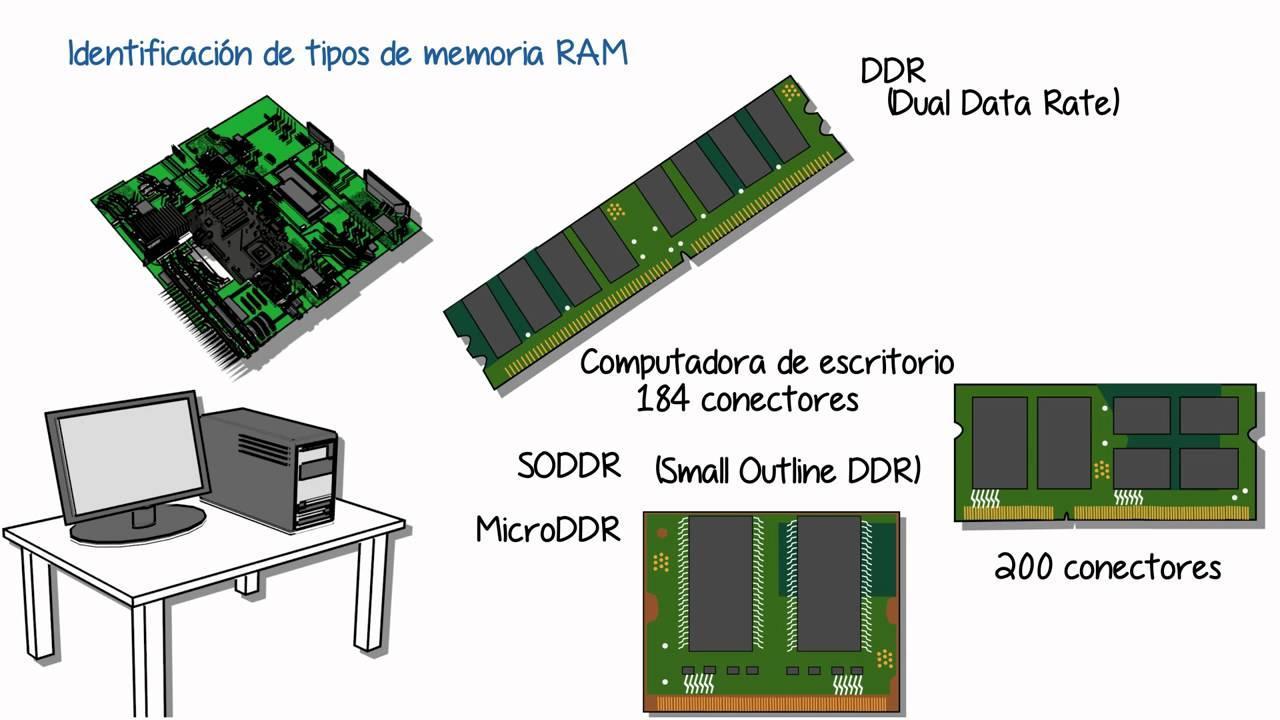
Modern laptops primarily use DDR4 and DDR5 memory modules, with capacities typically ranging from 8 GB for basic models to 64 GB for high-end laptops. For light office tasks and browsing, 8 GB is sufficient, but if you frequently have many tabs open, use editing software, virtual machines, or demanding games, 16 GB is a very reasonable starting point , and 32 GB becomes advisable in demanding professional environments.
In many ultrabooks, the RAM is soldered (LPDDR), meaning you can never upgrade it . In others, the motherboard includes SO-DIMM slots where you can replace or add modules. Before spending any money, it's a good idea to check how many slots there are, what type of RAM they accept, and what the maximum capacity supported by the computer is.
It's not just the quantity that matters: RAM speed (in MHz) and latency also play a role. You might not notice much difference in office tasks, but in games or on laptops with integrated graphics, faster RAM with low latency can make a significant difference in FPS , since the integrated GPU uses that same memory as VRAM.
Keep in mind that if you mix RAM modules with different speeds, the system will operate at the frequency of the slowest module. And, although RAM is volatile memory that is erased when the computer is turned off , it's where much of the system's perceived smoothness is determined.
Storage: HDD, SATA SSD and NVMe SSD
Storage is where the operating system, programs, documents, photos, games, etc., are stored. In modern laptops, almost everyone is opting for SSD drives instead of mechanical hard drives (HDDs) because they are much faster, quieter, and more resistant to shocks.
Within the world of SSDs, there are two main families. On one hand, there are SATA SSDs, which use the same interface as older hard drives and are limited by the bandwidth of that bus. On the other hand, there are NVMe SSDs, which connect directly to the PCIe bus and can offer read and write speeds several times faster , drastically reducing boot and application loading times.
In terms of storage capacity, 256 GB is far too little for a modern laptop if you plan to install several large programs, some games, and store your files with any degree of ease. A much more comfortable amount these days would be at least 512 GB . If you work with video, photography, or large multimedia libraries, 1 TB or more will save you a lot of headaches regarding storage space. If you need external storage, see how to choose a microSD card.
Laptops typically use M.2 storage, which can be SATA or NVMe depending on the model. Some laptops have a second free M.2 slot for adding another SSD, while others combine an SSD for the system and an additional HDD for mass storage (increasingly less common in thin laptops).
Just like with RAM, it's worth finding out if the SSD is in a replaceable module or soldered in. A soldered SSD leaves you with no internal expansion options, forcing you to use external USB drives or network-attached storage (NAS) solutions if you need more space.
Graphics card (GPU): integrated or dedicated
The graphics component is responsible for generating everything you see: desktop, animations, video, games, 3D interfaces, etc. In the laptop world, we find two approaches: integrated graphics in the CPU itself (such as Intel Iris Xe or AMD's integrated Radeon graphics) and dedicated GPUs like NVIDIA GeForce or AMD Radeon RX with their own video memory.
Integrated graphics share RAM with the system. For office tasks, web browsing, multimedia content, or light gaming, they're more than sufficient, and they also consume less power and extend battery life. The problem arises when you want to play demanding games, do heavy video editing, 3D rendering, or AI work ; in those cases, a dedicated GPU with its own VRAM makes a huge difference.
In laptops, dedicated graphics cards are usually soldered to the motherboard, so they can't be replaced like they would in a desktop computer. When choosing a computer, look not only at the GPU model, but also at the amount of graphics memory (4, 6, 8 GB or more) and the power consumption (TGP) allowed by the manufacturer, because this affects sustained performance and operating temperature.
Many laptops with dedicated GPUs use switching systems: for light tasks they use the integrated graphics to save power, and when you open a game or a demanding app, they automatically switch to the dedicated graphics card . From the operating system or the GPU control panel, you can force which card a specific program will use.
Battery: Power to use your laptop away from a power outlet
The battery is the component that makes your laptop portable. It's made up of lithium cells, and its capacity is expressed in Wh (watt-hours). The higher this number, the more energy it can store, although it also adds more weight and bulk to the device . Manufacturers are always balancing battery life with a slim design.
Actual battery life depends on more than just capacity. Factors such as the CPU and GPU (low-power versions last longer), screen brightness, usage (browsing is not the same as gaming), and the power plans you choose in your system all play a role. The same laptop might last 8 hours writing documents to just over 2 hours gaming or editing video.
In most modern models, the battery is integrated inside the chassis and is not removable from the outside. Replacing it is possible, but it usually requires disassembling the bottom casing and even removing other components to access it, so it's not as simple as removing a removable battery from the past.
To extend battery life, avoid overheating your laptop, don't keep it at 100% charge unnecessarily, and don't always drain it to 0%. Many laptops include options in their BIOS/UEFI or manufacturer's software to limit the maximum charge or better manage battery cycles.
Motherboard, buses and controllers: the skeleton of the laptop
The motherboard is the component where everything else is mounted and connected. It houses the CPU, memory chips, RAM slots (if present), M.2 slots, port controllers, and the main chipset, which coordinates data traffic. It is, quite literally, the nerve center through which everything passes.
In modern architectures, many functions that were previously spread across multiple chips—such as the memory controller or certain interfaces—are now integrated directly into the processor or a very compact chipset. This allows for reduced latency and simplified chipset design , as well as saving space, which is vital in laptops.
Data buses are the internal "highways" along which bits travel. The wider the bus (more bits in parallel), the higher the frequency, meaning more information can flow per second. If you have a very powerful CPU, but the bus to RAM or storage is narrow and slow, it becomes a bottleneck that slows down the entire system.
The motherboard also integrates or connects the various controllers: for the hard drive or SSD (usually via SATA or PCIe ports), for the network card, for audio, for USB ports, etc. These controllers are responsible for translating the processor's commands into a language that the peripherals understand , and vice versa.
A key part of the design is the chipset, which groups together many of these controllers and defines aspects such as the maximum amount of RAM that can be installed, what versions of PCIe or USB are available, what types of storage are supported, or what compatibility there is with different generations of processors.
Additionally, the motherboard houses the BIOS/UEFI chip and the small battery (accumulator) that maintains certain basic data (time, date, and critical parameters) when the laptop is turned off. If this battery runs out, the computer will typically lose its time or boot configuration and the battery will need to be replaced.
ROM, BIOS, cache, and virtual memory
A laptop doesn't just have RAM and main storage; it also has non-volatile memory where the firmware that allows everything to boot is stored. Traditionally, this was referred to as ROM (Read Only Memory), although nowadays it's common to use reprogrammable flash chips to store the BIOS or UEFI.
The BIOS or UEFI is that small program you can access by pressing a specific key as soon as you turn on your laptop. From there, you configure the basic behavior of the hardware: boot order, power settings, CPU parameters, RAM, devices, etc. It's critical software that runs before the operating system itself.
As we've already seen, the CPU has several levels of cache memory (L1, L2, L3), which are high-speed memories integrated into the processor itself. Their purpose is to store the data and instructions that the processor will need immediately, so it doesn't have to wait for them to arrive from the much slower RAM or SSD .
On the other hand, virtual memory is an operating system technique that simulates having more RAM than actually exists. When RAM fills up, the system moves some of the less frequently used data to a special file on the hard drive or SSD (page file). This allows programs to continue running, but at the cost of a significant performance decrease, because SSDs are much slower than RAM.
On laptops with limited RAM, it's common to experience stuttering or lag when you have many applications or tabs open: this is the system making intensive use of virtual memory. Therefore, if you frequently perform heavy multitasking, upgrading your RAM is usually a much more effective improvement than tweaking the page file settings.
Ports, connectivity and peripherals in laptops
A laptop's hardware isn't just internal: how it communicates with the outside world is also crucial. That's where physical ports and wireless interfaces come in , allowing you to connect mice, keyboards, monitors, external hard drives, printers, networks, and all sorts of peripherals.
The ubiquitous standard today is USB, in its various forms (primarily USB-A and USB-C). These ports allow you to transfer data, charge devices, and even power and charge your laptop itself thanks to USB Power Delivery on compatible models. On many devices, some USB-C ports also offer video output via DisplayPort Alt Mode.
For wired network connections, the RJ45 Ethernet port is used, when the chassis thickness allows. For wireless connectivity, almost all laptops integrate dual-band Wi-Fi and Bluetooth cards for connecting to networks and peripherals without cables. Behind this "magic" are radio chips and antennas integrated into the screen bezel.
Regarding video, the most common connector is HDMI, although some models also include Mini DisplayPort or rely entirely on USB-C with DisplayPort for image output. Depending on the GPU and the port standard, a laptop can handle multiple external monitors at high resolution and refresh rate , which is very useful if you work with many windows or need a large desktop.
Don't forget the integrated peripherals: keyboard, touchpad, screen, speakers, microphones, and webcam. Although they're often downplayed in specifications, they're what determine the actual user experience on a daily basis . A powerful processor with a mediocre screen or an uncomfortable keyboard can be a bad purchase if you spend many hours in front of the computer.
Thermal management and cooling in laptops
One of the biggest challenges for any laptop is dissipating the heat generated by the CPU, GPU, and other components in a confined space. Unlike a desktop computer, the margin for error is small, and poor thermal design can turn a laptop that appears powerful on paper into a noisy, hot machine that constantly throttles its clock speeds.
Most laptops combine one or more fans with heat pipes and metal blocks that rest on the hottest chips. Heat travels through the heat pipes to fins where air, driven by the fans, carries the heat away . While it's not as simple as replacing a desktop heatsink, you can keep the system in good condition by avoiding blocking the vents and cleaning the dust regularly.
If the CPU or GPU reaches its thermal limit, it activates a protection mechanism known as throttling: it reduces its frequency to lower the temperature. This results in performance drops, lag in games, or longer rendering times . That's why some laptops, despite having the same processor, perform worse than others with a more efficient cooling system.
The operating system and BIOS/UEFI typically offer several power profiles: silent, balanced, high performance, etc. In more conservative modes, the maximum CPU and GPU power is limited to control temperatures and noise, at the cost of some performance. In performance mode, on the other hand, more power is consumed and more heat is generated in exchange for increased speed . Depending on what you're doing, you might want to switch profiles.
If you notice that a laptop that used to work well now gets very hot and the fans roar during simple tasks, it could be a sign that the thermal paste between the CPU/GPU and the heatsink has degraded or that the air vents are clogged with dust. Internal maintenance, including cleaning and replacement of the thermal paste by a technician, can restore much of the performance and reduce noise without needing to replace the entire computer.
After exploring all these elements, from the most basic level of bits and bytes to thermal design, it becomes clear that a laptop is much more than a list of specifications on a sticker. Understanding how the processor, memory, storage, motherboard, battery, ports, and cooling relate to each other allows you to make better choices about your next machine, know what's worth upgrading, and how to care for your existing laptop so it continues to perform at its best for years to come.
Table of Contents