If your computer is slow, freezes when you open multiple browser tabs, or games stutter, there's almost always one clear culprit: RAM . It's one of those components that's always there, working in the background, and that makes all the difference between a fast computer and one that's desperately sluggish.
While processors and graphics cards are often discussed, RAM is the true "workspace" of your PC , mobile device, or console. Understanding what it is, how it works, the different types available , and how much you need is key to making the right choice when buying or upgrading your equipment, and to understanding why a simple memory upgrade can sometimes make everything feel brand new.
What is RAM and how does it actually work?
RAM stands for Random Access Memory , and it is the main and working memory of any device: desktop computers, laptops, mobile phones, tablets, consoles, smart TVs, routers, etc.
Unlike a hard drive or SSD , RAM is volatile memory : it only retains data while the computer is powered on . The moment you shut down, restart, or the power goes out, everything stored there disappears. That's why it's used as a kind of quick notepad for everything the system needs "right now."
When you turn on your computer, the operating system, drivers, and programs that open are loaded from storage (HDD or SSD) into RAM . From that moment on, the processor (CPU) and, in many cases, the graphics card (GPU) read and write data at high speed to this memory, which is much faster than any storage device.
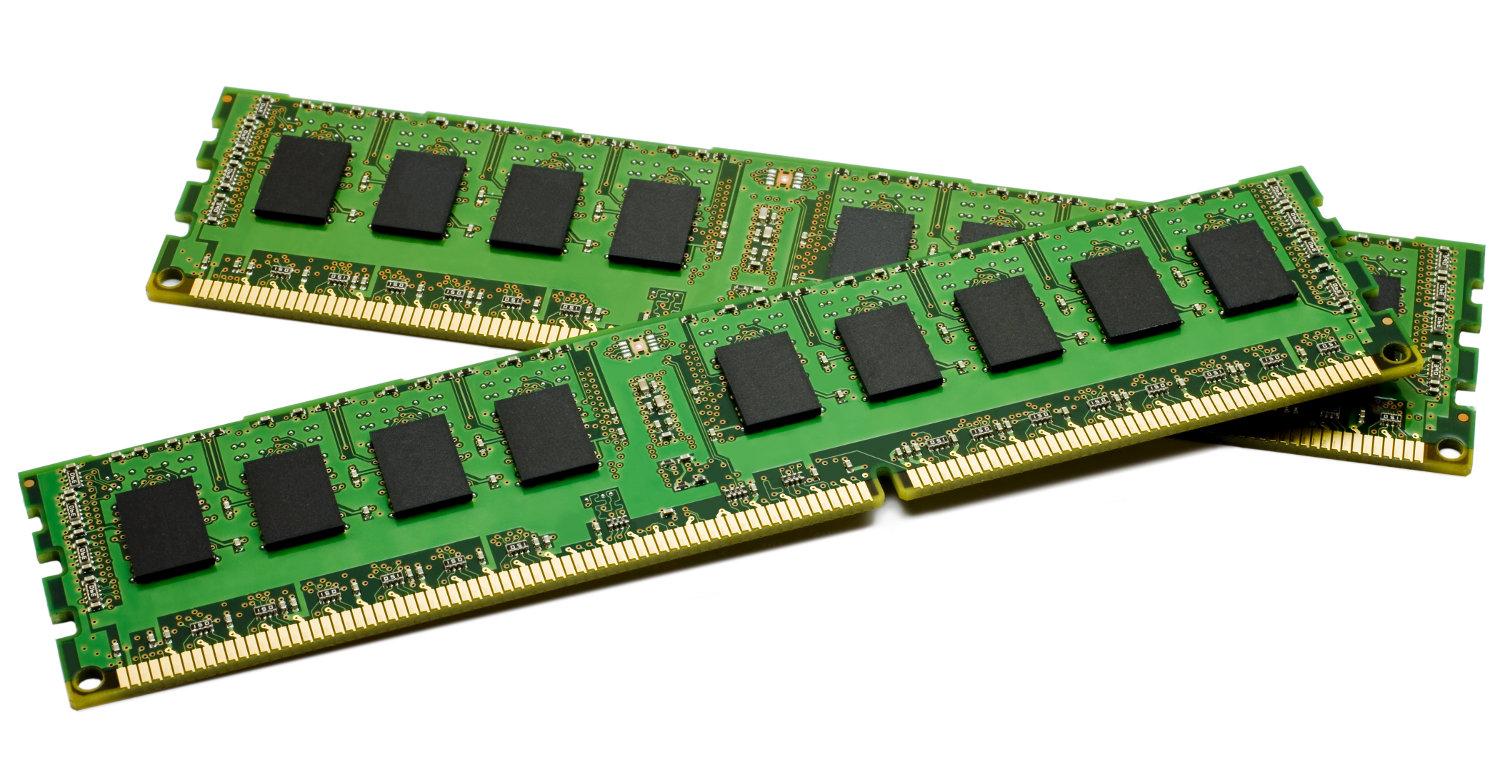
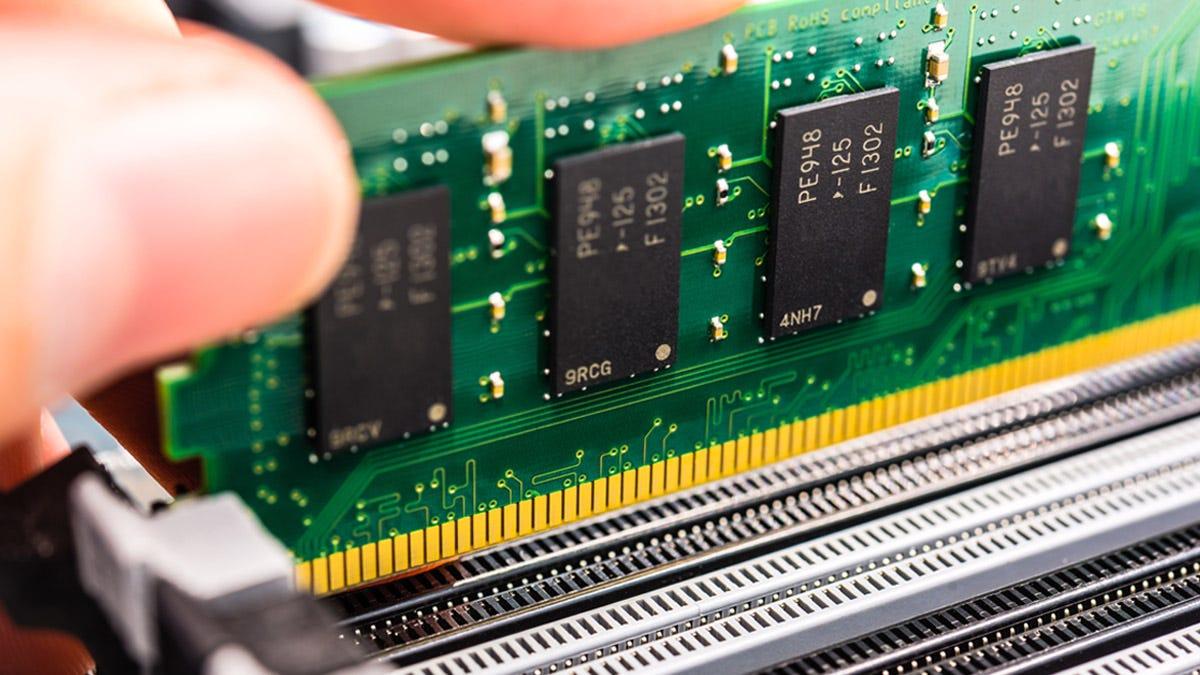
Physically, in a desktop PC, RAM comes in the form of rectangular modules that are mounted in the motherboard slots. Each module contains several memory chips, and it's possible to install one, two, or more modules to increase the total available memory and performance.
In laptops, mini PCs, and mobile devices, RAM is often soldered or integrated into the logic board or even within the main chip itself (as is the case in many modern SoCs). This means that, in practice, you can't upgrade the RAM in these devices: you're stuck with the memory that came with them from the factory.
Why RAM is so important for performance
RAM is critical because it determines how much data and how many programs can be active at once without the system slowing down. The more RAM a computer has, the more applications, windows, tabs, and processes it can smoothly run simultaneously.
When RAM runs out, the operating system doesn't have enough space for everything it wants to have readily available and starts using a trick called virtual memory : reserving a portion of the hard drive or SSD to simulate additional memory. The problem is that storage is tens of times slower than RAM, so the result is stuttering, constant pauses, and freezes.
Think of RAM as the surface of your desk and the hard drive as the filing cabinet or drawers. What's on the desk is immediately accessible; what's in the drawers takes longer because you have to open them, search for files, and then save them again. If your desk (RAM) is too small, you're constantly opening and closing drawers (the hard drive), wasting time and disrupting your workflow.
Furthermore, RAM doesn't just help the CPU. Integrated graphics cards (those without their own dedicated memory) use a portion of the system RAM as video memory (VRAM) . The more RAM and memory bandwidth a computer has, the better the graphics performance will be in light gaming, multimedia playback, and basic 3D applications.
In short, a good processor without enough RAM performs far below its potential . Conversely, a modest processor with a sufficient amount of memory can perform much more smoothly than you might expect.
Basic concepts you should master about RAM
Capacity: How much RAM do you really need?
The most important characteristic of RAM is its capacity , which today is primarily measured in gigabytes (GB) . Previously, kilobytes (KB) and megabytes (MB) were used, and in the server environment, it's now common to hear about terabytes (TB) of RAM.
The processing power determines whether you can boot a modern operating system, open certain programs, or run current games . If you don't meet the minimum requirements of the software, the computer either won't start the program at all, or it will start so slowly that it will be unusable.
Some useful references to guide you with the amount of RAM would be the following:
- 4 GB of RAMIt's only acceptable for very basic tasks (light office work, some browsing, and little else) and with optimized operating systems. It quickly falls short these days.
- 8 GB of RAM: reasonable minimum for current home use: browser with multiple tabs, office suite, some streaming and simple applications.
- 16 GB of RAM: recommended for true multitasking, current gaming, intensive office work and users who always have many things open.
- 32 GB of RAM: designed for Video editing, graphic design, 3D modeling, virtual machine programming and very demanding games, or to have all of that open at the same time.
- 64 GB or more: necessary only in very specific cases: demanding professional tasks, scientific simulations, 8K video editing, large databases, etc.
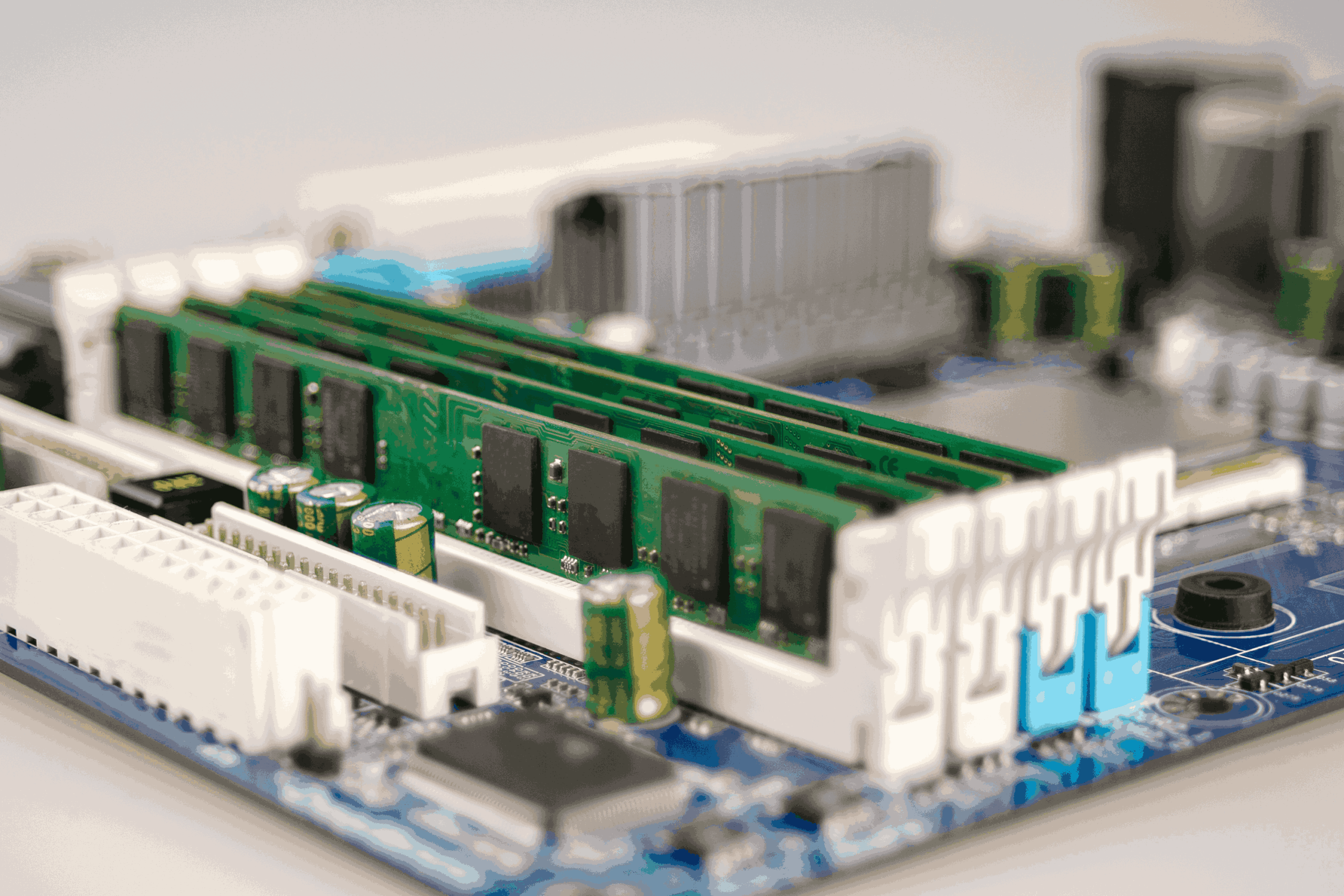
In practice, the most common kits sold today for home PCs are 16 GB and 32 GB , almost always consisting of two modules (2 x 8 GB or 2 x 16 GB) to take advantage of the dual memory channel.
Frequency, bandwidth, and channels: speed matters too
Once you have sufficient capacity , RAM speed comes into play . This is usually indicated in MT/s or effective MHz (for example, DDR4-3200 or DDR5-6000) and indicates how quickly data can be read from or written to the memory.
The speed, combined with the memory bus width , determines the bandwidth , that is, how much data per second can flow between the RAM and the processor. In home PCs, the typical values are:
- Single channel: an active module, 64-bit bus.
- Dual channel: two modules in the correct banks, 128-bit bus and double the bandwidth.
In high-end equipment and servers, there are also configurations of four, six, eight or more channels , which significantly increases bandwidth for professional workloads.
In a typical PC, it's highly recommended to always install RAM in dual channel : for example, 2 x 8 GB instead of 1 x 16 GB. The performance boost is especially noticeable with integrated graphics , which are heavily reliant on memory bandwidth.
Latency: the small detail that will almost never keep you up at night
RAM latency describes the time it takes for the memory to respond to a command. It is usually expressed as CL (CAS Latency) followed by a number , for example, CL16 or CL30. At the same frequency, a lower CL indicates a slightly faster response.
In practice, latency does have some impact, but it's not as crucial as capacity or bandwidth . Between two kits with normal latency differences (for example, CL16 vs. CL18 in DDR4-3200), the actual improvement will be only a few percentage points, and you'll barely notice anything in day-to-day use.
Illustrative examples of approximate latencies in nanoseconds, combining frequency and CL, help to make it clearer:
- DDR3 2000 MT/s CL9: ≈ 9 ns.
- DDR4 2133 MT/s CL15: ≈ 14 ns.
- DDR4 3200 MT/s CL22: ≈ 13,7 ns.
- DDR5 4800 MT/s CL40: ≈ 16,6 ns.
For the average user, it makes more sense to ensure good capacity and dual channel and, if the budget allows, choose a kit with a reasonable frequency and moderate latency, without obsessing over squeezing every last millisecond.
Types of RAM and DDR generations
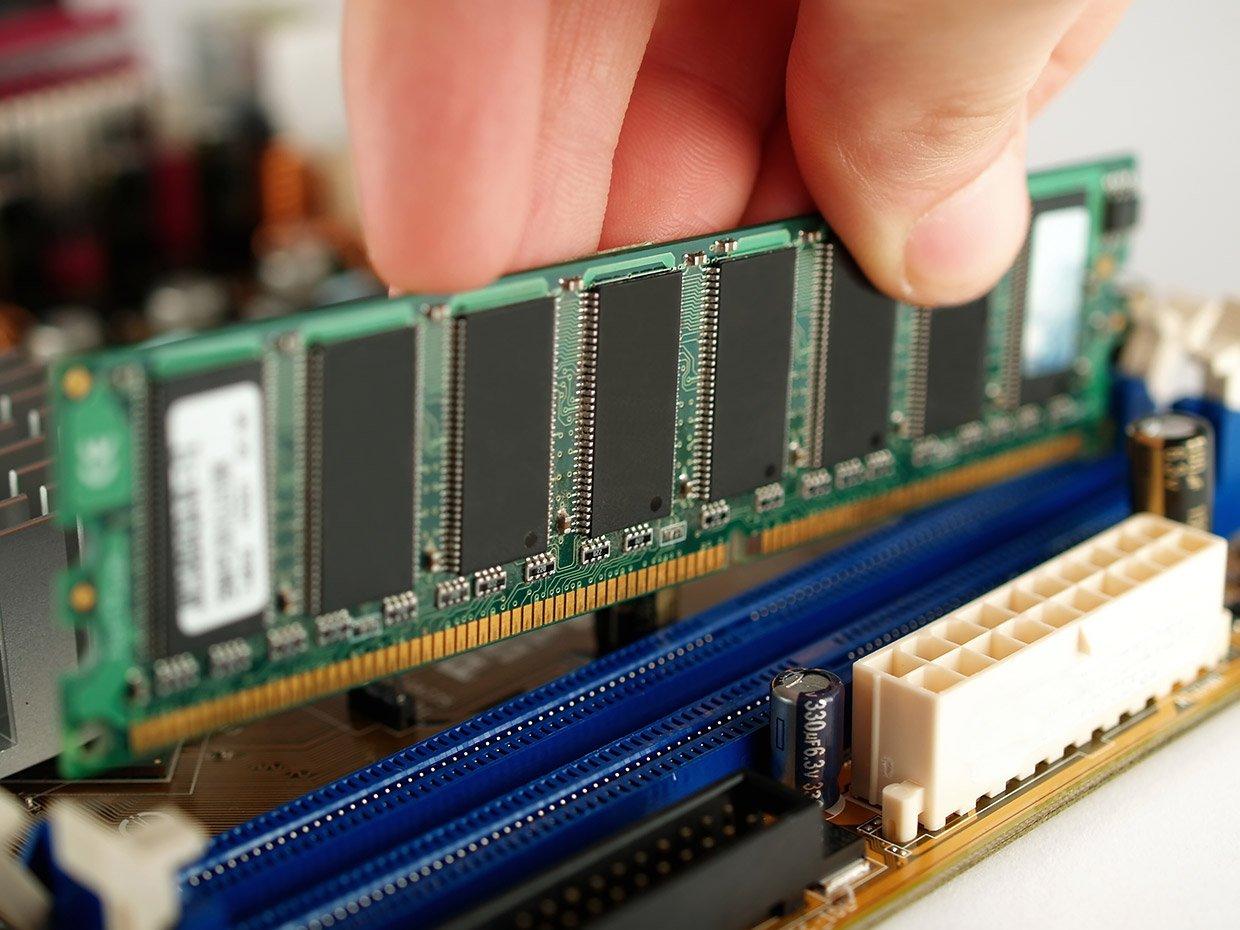
When we talk about RAM in modern PCs, we almost always refer to the DDR-SDRAM (Double Data Rate Synchronous DRAM) family , which has evolved through different generations; there are also emerging memories such as ReRAM.
- DDR (DDR1): first popular generation. Today it is completely obsolete.
- DDR2: Predominant in the Pentium 4 and early Core 2 Duo era. Hard to find outside of very old systems.
- DDR3For years it was the standard. It's still used in many older PCs, but it's now outdated.
- DDR4This is the most common type of memory found in current mid-range computers and many laptops. It offers a good balance between cost, performance, and power consumption.
- DDR5The latest generation, with much higher frequencies, better efficiency, and more room for growth. It's the bet for the future, although its price has risen sharply recently.
Each DDR generation is physically incompatible with the others : the number of pins, the notch position, and the voltage all change. You can't install a DDR4 module on a motherboard designed for DDR5, or vice versa, unless you use very specific adapters in testing environments, which doesn't apply to the average user.
DRAM, SRAM, SDRAM and other acronyms worth knowing
Your PC's RAM belongs to the DRAM (Dynamic RAM) family , where information is stored in small capacitors that need to be constantly refreshed . It's a relatively inexpensive technology and well-suited for large capacities.
On the other hand, there's SRAM (Static RAM) , which uses transistors instead of capacitors. It's much faster and more stable , but also much more expensive and has lower density , so it's reserved for very specific uses, such as processor cache memory.
When you hear about SDRAM (Synchronous DRAM), it refers to DRAM synchronized with the system clock. Modern DDR is actually DDR-SDRAM : Synchronous Dynamic Memory with a double data rate. If you're interested in research on new architectures, read about analog computing in memory.
Physical format: DIMM, UDIMM, RDIMM, CUDIMM and SODIMM
In addition to type and generation, RAM memory comes in different physical formats , each designed for a specific type of equipment:
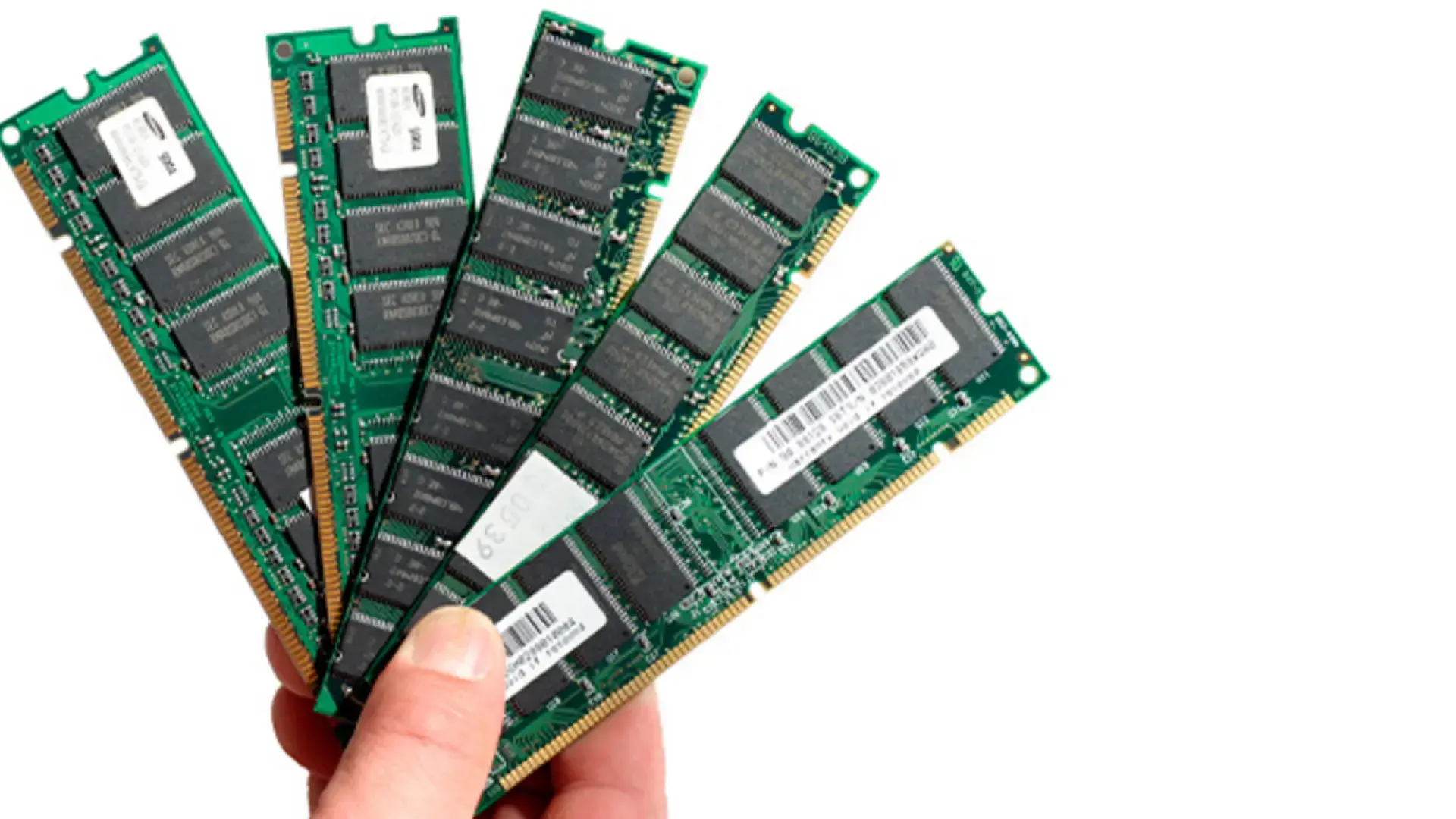
- DIMM / UDIMMLong modules, typical of desktop computers. UDIMM stands for "unbuffered" and is what you install in your home PC.
- RDIMMModules with registration and often with ECC (error correction)They are used in servers and workstations where reliability is more important than latency.
- CUDIMM: an evolution of UDIMM with integrated clock chip (CKD) to allow even higher frequencies, typical of advanced DDR5.
- SODIMMShorter modules, designed for laptops, mini PCs and some compact computersTechnologically they are equivalent to DIMMs, only the size and connector change.
RAM versus other types of memory: ROM and others
A computer contains several types of memory, and it's easy to mix them up. Broadly speaking, the key differences are:
- RAM: working memory, fast and volatile. It is erased when you turn off the team.
- ROM (Read Only Memory): read-only memory, common for firmware, BIOS/UEFI or data that should not be changedIts contents are maintained without feeding.
- PROM, EPROM, EEPROM: ROM variants that can be programmed once or several times at the factory or through specialized processes.
- Storage (HDD, SSD, NVMe)It's not RAM, although it's sometimes referred to as disk "memory." Its function is store data permanentlyeven without electricity.
The main idea is that RAM and storage complement each other, they don't replace each other . You can have a huge SSD, but if the RAM is insufficient, the computer will still bottleneck as soon as you open four things at once.
Impact of RAM on common tasks
The importance of RAM varies depending on how you use your computer. Here are some practical examples:
Modern browsers (Chrome, Edge, Firefox, etc.) are real memory hogs. Every open tab consumes RAM , especially if it loads resource-intensive websites, online services, or social media. When memory is low, the browser will start closing tabs in the background or the system will resort to virtual memory, making everything feel sluggish.
For use focused on browsing, email, occasional video calls and office documents , today it is reasonable to have at least 8 GB and 16 GB to be comfortable , especially if you are one of those who accumulate tabs without mercy.
Games
Modern PC games load textures, 3D models, physics, audio, and other resources into RAM and the graphics card's VRAM. A modern gaming system should ideally have 16 GB of RAM . Many games run with 8 GB, but an increasing number of titles are now requiring at least 16 GB to avoid lag and loading times.
If you also play while using Discord, a browser with guides open, a recording program, or streaming software , that extra headroom is incredibly welcome. In some very demanding titles or those with mods, upgrading to 32 GB helps stabilize performance.
Photo editing, video editing, 3D and creative work
Programs like Photoshop, Lightroom, Premiere, DaVinci Resolve, Blender, and similar software are very sensitive to the amount of available RAM. When working with high-resolution images, projects with many layers, or timelines with 4K or 8K clips, memory fills up quickly.
For these types of tasks, it's recommended to start with 16 GB for light work and increase to 32 GB or more if you're going to work seriously on complex projects. In professional studios, it's not uncommon to see workstations with 64 GB, 128 GB, or more , depending on the workflow.
How to choose good RAM for your computer
When buying or upgrading RAM, it's important to consider several factors to avoid making a mistake:
1. Motherboard and processor compatibility
First, you need to check what type of RAM your motherboard supports: DDR3, DDR4, or DDR5 , and what its maximum capacity is. This information can be found in your motherboard manual or on the manufacturer's website. It will also indicate the maximum frequencies considered official or stable.
Modern consumer motherboards are usually limited to a specific type of DDR memory . Consumer motherboards with both DDR4 and DDR5 slots are not available, so if you upgrade your platform, you'll typically have to upgrade your memory as well.
2. Choose the appropriate frequency
In DDR4, a common sweet spot between price and performance is around 3200 MT/s with CL16 latencies . Going beyond that to very high frequencies significantly increases the cost of the kit, and the actual gain is usually marginal for most uses.
In DDR5, current Intel and AMD platforms perform particularly well with kits around 6000 MT/s and CL30 latencies . Faster modules exist (7200, 8000 MT/s and higher), but their higher price is usually not worth it for normal use or gaming.
3. Activate the XMP or EXPO profiles
When you buy high-performance RAM, it comes with certified overclocking profiles (XMP for Intel, EXPO for AMD) that allow you to reach the advertised frequencies. By default, many motherboards start the RAM at the JEDEC base speed, which is considerably lower.
To get the most out of what you paid for, you need to enter the BIOS/UEFI and activate the corresponding XMP/EXPO profile . It's a simple setting, but without it, your kit might be running at, for example, 2133 or 2400 MT/s instead of 3200 or 6000 MT/s.
4. Number of modules and slot occupancy
As mentioned earlier, it's preferable to install two modules in dual channel rather than just one. Furthermore, with DDR5, it's important to know that filling all four slots on the motherboard may require lowering the frequency to maintain stability, especially with very fast kits.
If you want a lot of DDR5 RAM (for example, 64 GB), it's usually better to buy 2 x 32 GB than 4 x 16 GB . You'll maintain better compatibility with high frequencies and save yourself the headache of fine-tuning.
What's going on with RAM prices right now?
The RAM market is quite volatile. Lately, especially with DDR5, we've seen very sharp price increases.
If your computer is working reasonably well and your RAM upgrade isn't urgent, it makes sense to wait for the market to stabilize . However, if your computer is practically unusable due to lack of memory, it might be worth looking into other options.
- Special offers at reliable stores with a good returns policy.
- Second hand marketSince RAM is a component that suffers little wear and tear with use, provided it has been treated correctly.
Interestingly, sometimes buying a pre-built PC can be cheaper than assembling a computer from parts when RAM is particularly expensive, because large manufacturers negotiate very different prices than the end user.
Frequently asked questions about RAM
Finally, it's worth answering some common questions that always come up when talking about memory:
Does increasing RAM always improve performance?
Upgrading your RAM improves performance if your current amount is insufficient . If your system already has plenty of memory and you're only using 50-60% of it, adding more won't make much of a difference. The improvement is noticeable when you go from being just barely adequate (with constant disk accesses) to having ample headroom.
Can I mix different modules?
In theory, you can mix modules of different brands, capacities, or frequencies , but it's not ideal. The system will adjust everything to the lowest common standard (slower module speed, more relaxed timings), and there's a risk of instability or unusual incompatibilities.
To avoid problems, it's best to always use identical RAM kits : same brand, same capacity, same frequency, and same latency. And if you upgrade, use the same model you already have whenever possible.
How long does RAM last?
RAM is one of the most durable computer components. Barring factory defects, impacts, power surges, or extreme humidity, it can function properly for 7, 10, or more years without problems. That's why the secondhand market makes a lot of sense for this particular component.
Can RAM be "cleaned" or maintained?
You don't need to perform any physical maintenance beyond keeping the inside of the computer dust-free and using a good power supply to avoid electrical surges. On the software side, closing programs you don't use and checking what loads at startup helps free up RAM for what you actually need.
Understanding how RAM works, its role in relation to the processor and storage, the different types available, and how much you need based on your usage will help you make the right choice when buying or upgrading a computer . With the right capacity, dual-channel configuration, and a reasonable frequency compatible with your motherboard, your desktop, laptop, or even mobile phone will be able to get much better performance from your existing hardware and deliver a smooth experience for years to come.
Table of Contents
- 1 What is RAM and how does it actually work?
- 2 Why RAM is so important for performance
- 3 Basic concepts you should master about RAM
- 4 Types of RAM and DDR generations
- 5 RAM versus other types of memory: ROM and others
- 6 Impact of RAM on common tasks
- 7 How to choose good RAM for your computer
- 8 What's going on with RAM prices right now?
- 9 Frequently asked questions about RAM