If you use a computer, game console, or mobile phone daily, you're surrounded by USB ports, even if you hardly notice them. They're on keyboards, mice, external hard drives, USB-C flash drives , chargers, cars, televisions, mini hi-fi systems, cameras… and yet, it's very common to get confused with all the Type A, B, C, Mini, Micro, 2.0, 3.2, 4.0 and other acronyms.
In this guide, you'll find all types of USB ports and connectors explained clearly and concisely, with real-world examples , so you know exactly what you're dealing with, what speeds they offer, what you can connect compatiblely, and what's completely obsolete. You'll also see how the generations (1.0, 2.0, 3.x, 4) relate to the physical shapes of the connectors and the role of technologies like Power Delivery, DisplayPort Alt Mode, Thunderbolt, and USB OTG.
What exactly is the USB standard and why has it become so popular?
USB stands for Universal Serial Bus and was born in the mid-90s as a "do-it-all" port to replace the chaos of older connectors (serial, parallel, PS/2, proprietary printer and camera ports, etc.). The first stable commercial specification was USB 1.1, released in 1998, and since then growth has been explosive: billions of devices sold and virtually every modern gadget includes at least one USB connector.
The beauty of USB was combining three key things: simplicity, power, and backward compatibility . The same type of cable could be used for many peripherals, the port could power small devices without its own adapter, and when newer, faster versions came out, they continued to work with older devices (although the speed was limited to the slowest standard involved).
Over time, USB usage has expanded far beyond PCs : car radios, Blu-ray players, game consoles, televisions, routers, electronic toys, industrial systems, and even military applications. The impact on phones and tablets has been complete: older proprietary connectors have virtually disappeared, and in Europe, regulations mandate the use of USB-C for charging mobile phones, tablets, cameras, and other portable devices.
Another strength of the standard is power supply . A USB port can directly supply power to low-power peripherals (mice, flash drives, small adapters, etc.). When this power is insufficient, externally powered USB hubs or the dedicated power supplies of larger devices (printers, monitors, high-demand hard drives) come into play.
USB port form factors: types of physical connectors
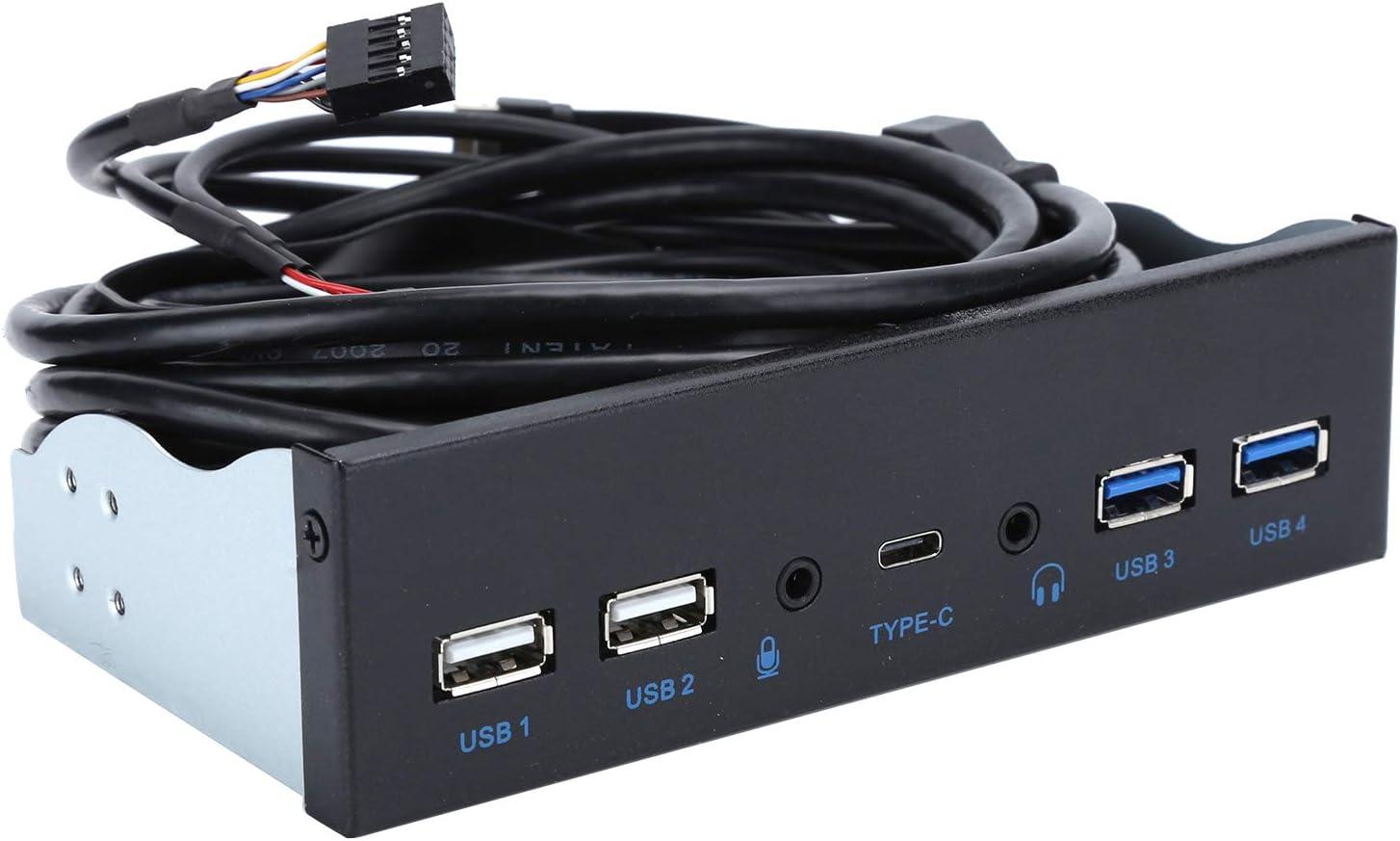
Although the USB standard is "universal" in terms of protocol, the physical connector has not been unique or constant . Over the years, several formats have appeared, mainly to adapt to the size of devices—as is the case with microboards using USB-C connectors —and to meet new speed and power requirements. It's important to understand that the connector form (Type A, B, C, Mini, Micro) and the standard version (1.x, 2.0, 3.x, 4) are distinct concepts, although they are related.
USB Type A: the classic that's always been around
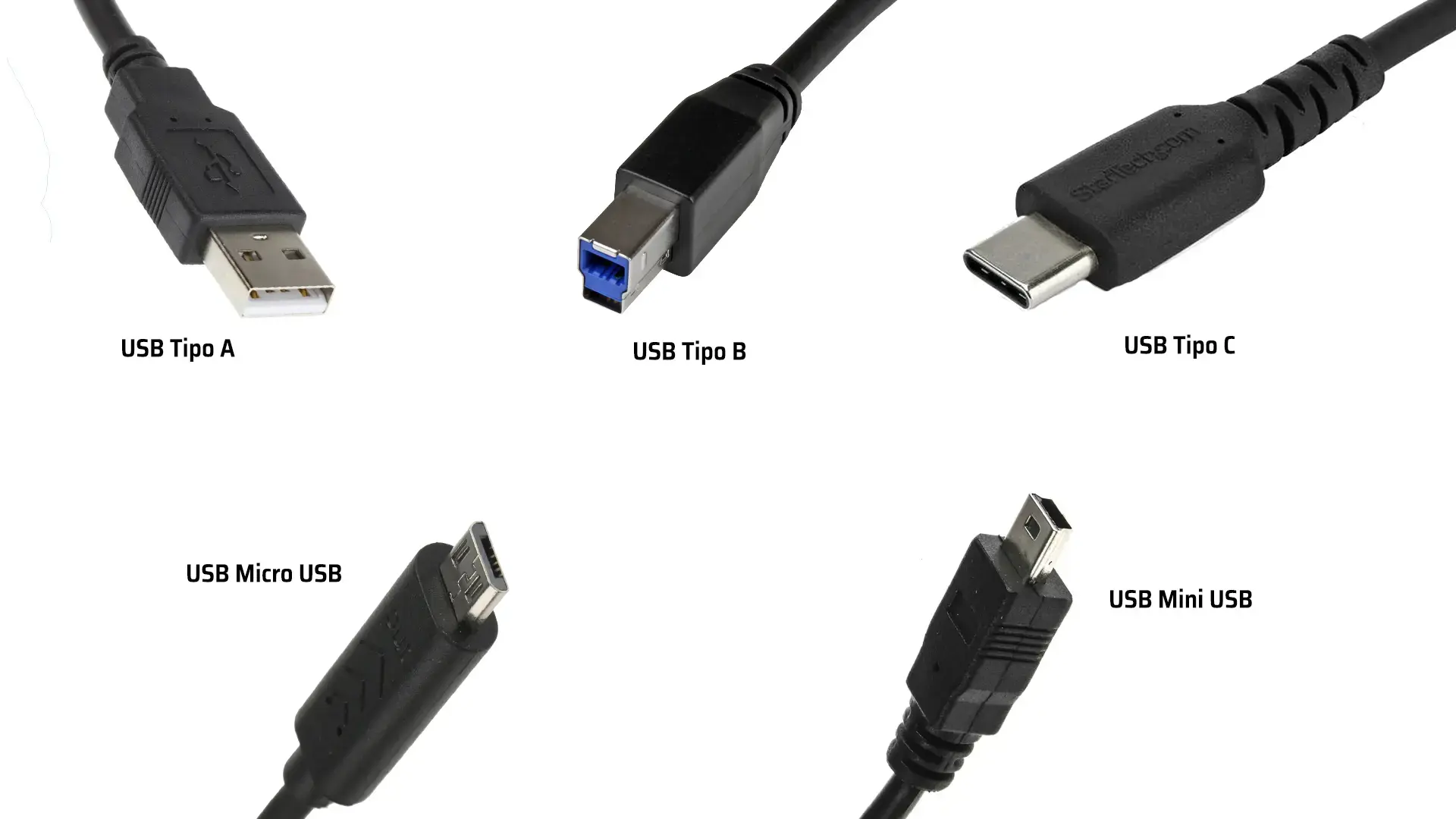
The USB Type-A connector is the flat rectangle that we all immediately associate with the word "USB ." For many years it has been the dominant port on desktop computers, laptops, game consoles, televisions, and wall chargers.
This type of connector has been used with multiple generations of the standard : from USB 1.0/1.1 (usually with white inner plastic), through USB 2.0 (black interior), to USB 3.0, 3.1 and 3.2, where the famous blue color or variants such as light blue or "teal" usually appear to indicate SuperSpeed modes.
Although the latest specifications consider it an obsolete connector compared to USB-C , in practice it remains very common on motherboards, PC cases, docking stations, keyboards, mice, flash drives, and countless other accessories. The complete transition to USB-C will take years, especially for desktop computers.
USB Type B: the connector for printers and bulky peripherals
The USB Type B connector is that almost square one, with beveled top edges, that you'll see on many printers, scanners, or some older external hard drives . It originated as the "device" end, complementary to Type A, which is usually the "host" side (computer, hub, etc.).
USB 1.x and 2.0 used a relatively simple form . With the arrival of USB 3.0, a slightly taller variant appeared, with more pins, sometimes called "SuperSpeed Type B", designed to support the higher transfer rates.
Today, USB Type-B is practically obsolete . Many peripherals have migrated to USB-C or even wireless connections (WiFi, Bluetooth). Even so, it's still common to find it in office printers, professional scanners, some audio equipment, or devices like UPS/uninterruptible power supplies, where there isn't much pressure to miniaturize or redesign.
Mini USB: the first attempt to make the connector smaller
The Mini USB format appeared when digital cameras, MP3 players, and mobile phones began to proliferate, requiring a more compact connector than the classic Type B. It has a trapezoidal shape and was very common in cameras, GPS devices, and some console controllers (for example, the PS3 controller).
Within this family there were Mini-A and Mini-B variants, as well as specific OTG connectors . The Mini-B was by far the most popular, while the Mini-A barely made a dent in the consumer market.
Over time, Mini USB was clearly superseded by the even smaller and more robust Micro USB. Officially, Mini-A was declared obsolete in favor of Micro-A as early as 2008, and the rest of the Mini family gradually disappeared as manufacturers adopted the new format and, subsequently, USB-C.
Micro USB: the king of smartphones… until the arrival of USB-C
For nearly a decade, Micro USB was the standard connector for Android phones, tablets, power banks, action cameras, Bluetooth speakers, and countless other gadgets . Its flat, trapezoidal design, thinner than Mini USB, allowed for slimmer devices with improved mechanical durability.
There were Micro-A, Micro-B and Micro-AB connectors for USB OTG , but in practice the one that became ubiquitous was Micro-B, present in both data and charging cables as well as in 2,5-inch portable external hard drives.
With USB 3.0 came "SuperSpeed" versions of Micro-B, with an additional piece attached to the classic connector to accommodate more pins . Visually, they were rather unattractive and somewhat bulky for small devices, one of the reasons why they never became as popular as the standard Micro-B.
Although Micro USB was formally declared obsolete with the arrival of USB 3.1 and the dominance of USB-C , it is still present in many inexpensive or older devices. For newer phones and tablets, however, the standard is now the USB Type-C connector.
USB Type-C: reversible and standard connector for everything
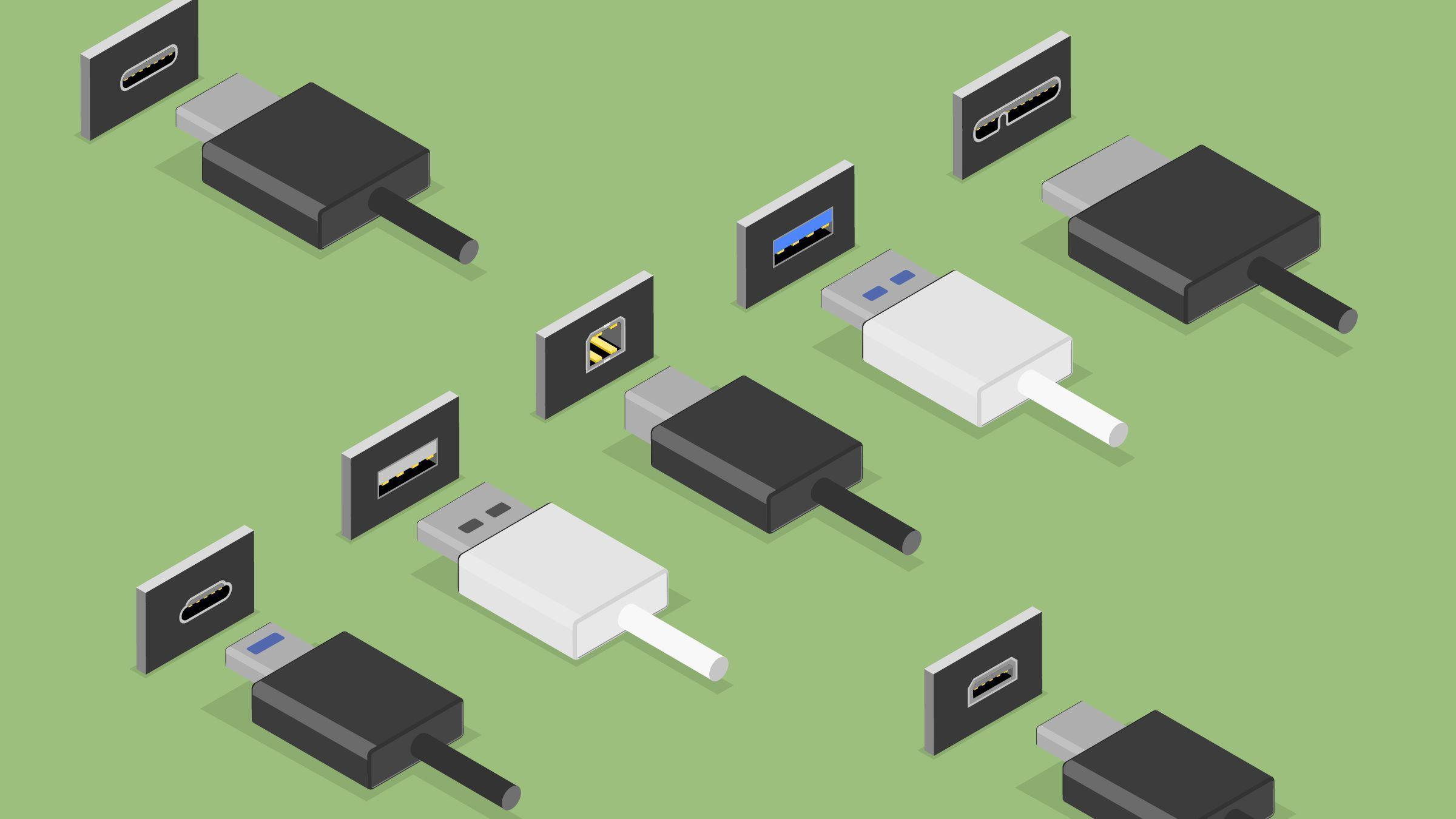
USB Type-C is the connector destined to replace all previous ones: A, B, Mini, and Micro . It's small, symmetrical, and completely reversible: no matter which way you plug it in, it always fits properly, something many appreciate after years of "trying on the third attempt" with Type-A.
Beyond convenience, USB Type-C is a true Swiss Army knife of modern connectivity . It can transmit data at very high speeds (up to USB 2.0), power at levels sufficient to run and even charge demanding laptops (thanks to USB Power Delivery), and video signals such as DisplayPort or HDMI via alternate modes.
Since USB 3.1 and especially with USB 3.2 and USB 4, the standard has clearly shifted towards using only USB-C connectors . Thunderbolt 3 and 4, as well as the upcoming Thunderbolt 5, also use this same physical form factor, further reinforcing its role as a universal connector in modern laptops, mini PCs, docks, and workstations.
In practice, it's common for laptops today to have only two or three high-speed USB-C ports , which handle charging, data transfer, and video output for 4K or 8K monitors. Desktop models still combine USB-C with a number of Type-A ports, but the balance is shifting year after year toward the reversible connector.
USB generations: speeds, port names and colors
So far we've talked about connector "shapes," but equally, if not more, important is the version of the standard behind that port . This determines the transfer speed, fast charging options, and compatibility with advanced features like video or PCIe over USB.
USB 1.0 and 1.1: The Beginnings
USB 1.0 was the first public specification, but 1.1 was the one that was truly adopted on a massive scale . We're talking about the mid-to-late 90s and early 2000s, when USB began to replace the older serial and PS/2 ports.
This generation defined two speed classes: low speed and full speed . Low speed reached 1,5 Mbit/s (about 188 kB/s) and was mainly used for human interface devices (keyboards, mice, joysticks, simple webcams). Full speed went up to 12 Mbit/s (1,5 MB/s), sufficient for printers and some peripherals of the time.
USB 1.x ports used to be distinguished by the white color of the inner plastic piece of the Type-A connector . Today, it's extremely rare to find modern devices that limit their ports to 1.1, as almost all have been updated to at least USB 2.0.
USB 2.0: High speed and widespread adoption
USB 2.0, released in 2000, was the major leap that allowed USB to become the leading interface for external storage and almost any peripheral . Its "high-speed" mode offers up to 480 Mbit/s (60 MB/s) theoretically.
In practice, due to protocol overhead, the maximum actual rates are around 35 MB/s , but that was already more than enough for flash drives, USB 2.0 external hard drives and most of the daily needs for many years.
The USB 2.0 cable uses four lines: two for data (D+ and D−) and two for power (5V and ground) . In terms of power, a standard 2.0 port supplies up to 500mA at 5V (2,5W), which is sufficient for many basic peripherals, but not ideal for power-hungry devices.
In terms of color, USB 2.0 ports are often identified by their black interior . They have long been the predominant port type on PCs, and are still present today, even though they share space with USB 3.x and USB-C ports.
USB 3.0, 3.1 and 3.2: the SuperSpeed era and the naming mess
USB 3.0 brings the "SuperSpeed" branding and an approximately 10-fold increase in speed compared to USB 2.0 . We're talking about 5 Gbit/s (600 MB/s theoretical), more than enough to get the most out of external hard drives, SATA SSDs, and a host of other high-performance devices.
To achieve this, the connector adds five additional contacts and uses separate channels for sending and receiving, enabling full-duplex communication . This is especially noticeable during intensive simultaneous read and write operations.
USB 3.0 ports are usually identified by a blue color inside the Type-A connector . Additionally, many motherboards and cases mark them with the "SS" logo for SuperSpeed.
USB 3.1, also known as SuperSpeed+, doubles the speed to 10 Gbit/s (1,25 GB/s) . The USB-C connector plays a key role here, although Type-A and Micro-B variants compatible with this standard may also exist.
USB 3.2 takes it a step further by utilizing two lanes at either 10 Gbit/s or 5 Gbit/s, allowing speeds of up to 20 Gbit/s (2,5 GB/s) in its 2×2 mode. This capability is de facto associated with USB-C connectors, as they are the only ones designed to support both lanes simultaneously in modern configurations.
To complicate matters further, the USB-IF renamed the previous versions : what was formerly USB 3.0 is now called USB 3.2 Gen 1, and USB 3.1 became USB 3.2 Gen 2. The result is some confusion in technical specifications and product packaging, where old and new names coexist.
In terms of colors, in addition to the classic blue, there are ports that use red, orange or yellow to indicate special charging functions (for example, ports that continue to supply power even with the PC turned off), and shades close to greenish blue (teal) for some advanced 3.2 ports.
USB 4 and USB 4 2.0: USB merges with Thunderbolt
USB 4 (officially USB4, no space) represents a significant leap forward, as it is based on Thunderbolt 3 technology . This allows speeds of up to 40 Gbit/s by utilizing two simultaneous high-speed lanes, always using USB-C connectors.
In addition to raw speed, USB4 improves support for carrying DisplayPort and PCI Express , opening the door to solutions such as advanced docks, external GPUs, and complete workstations using a single cable.
In 2022, the second generation, USB4 2.0, was announced, capable of doubling the bandwidth again to 80 Gbit/s . In certain asymmetric configurations, it can even reach 120 Gbit/s effective in one direction, designed for very high-resolution video scenarios.
USB4 maintains backward compatibility with USB 3.2 and 2.0 , so you can seamlessly connect older devices to a state-of-the-art USB-C port, although the speed will be limited to what the slowest element in the chain supports.
USB port colors and what they mean
Many manufacturers take advantage of the color of the plastic inside USB Type-A ports to quickly indicate the version and recommended use , which is very practical when you look at the back panel of a motherboard or the side of a laptop.
Quick synthesis of common colors in Type A and some Micro :
- Blanco: associated with USB 1.0/1.1, the slowest generation.
- Black: typically high-speed USB 2.0 (up to 480 Mbit/s).
- Blue: indicates SuperSpeed USB 3.0/3.1/3.2 Gen 1 ports.
- Teal or blue-green: advanced versions within USB 3.2.
- Red, orange, or yellow: special charging ports, capable of supplying power even when the equipment is switched off or in standby mode.
In the case of USB-C, the color doesn't usually indicate the version . Many ports are simply black, and the only sure way to know what they support (USB 3.2, USB4, Thunderbolt, DisplayPort Alt Mode, Power Delivery, etc.) is to consult the device's manual or specifications.
Power, USB Power Delivery and fast charging
One of the major advances in the USB ecosystem has been the progressive increase in the power that a port can deliver . What began with 2,5 W in USB 2.0 has evolved to 100 W (and even more in recent implementations) using USB Power Delivery (USB-PD) technology.
In older generations (around USB 2.0), power outputs typically ranged from 4,5 to 18 W , enough to slowly charge mobile phones or power small peripherals. With USB 3.2 and USB 4, typical power outputs range from about 35 W to 100 W, allowing for the charging of laptops, mini PCs, portable monitors, and other demanding devices.
USB-PD not only regulates power, but also dynamically negotiates voltage and current between the source (charger, laptop, hub) and receiver (mobile phone, tablet, PC, dock) (for example, programmable power supplies like PocketPD ) . This prevents damage to sensitive equipment and optimizes charging time with profiles such as 5V, 9V, 15V, or 20V at different currents.
This foundation is what has enabled the popularization of "fast charging" in mobile phones and other devices . Many manufacturers add proprietary layers on top of USB-PD or alternative standards, but always based on the USB port's ability to act simultaneously as a data and power channel.
USB as video output: DisplayPort Alt Mode and more
Another key development is the use of the USB-C connector as a compact alternative for transmitting video signals . Thanks to Alternate Modes, some of the connector's data lanes are reassigned to carry protocols like DisplayPort or to use USB-C to HDMI cables and adapters.
In practice, this means that a single USB-C cable can charge the laptop, transfer data at high speed, and output video in Full HD, 4K, 8K, and even higher resolutions with the latest revisions . This is what many modern USB-C docks and monitors use, connecting to the laptop with a single cable.
It is not intended to completely replace standard HDMI or DisplayPort in all scenarios , especially in home theater solutions or dedicated graphics cards, but it is an extremely versatile option, particularly in compact, ultra-portable and mini PCs.
Compatibility, backward compatibility, and port blocking
One of the great advantages of USB is its backward compatibility: you can almost always mix generations as long as you respect the connector shape . For example, a USB 2.0 device will work perfectly in a USB 3.0 Type-A port, but the speed will be limited to the USB 2.0 limit.
The general principle is simple: if the connector physically fits and the shape matches, the system should be compatible . Limitations arise from the slower generation of the signal chain and, in the case of power, from the maximum power the port or cable can handle.
In professional and educational settings, it's common practice to restrict or block USB ports for security reasons , to prevent the use of unauthorized flash drives or the connection of unknown hardware. This can be done via BIOS/UEFI or from the operating system (for example, by disabling drivers in Device Manager in Windows).
If a USB port stops working, it's a good idea to check three basic things before assuming it's faulty : that it's not locked in the BIOS or system settings, that the internal connector on the case is properly plugged into the motherboard (in the case of front panel ports), and that the chipset/USB drivers are correctly installed from the manufacturer's website. Only if all of these fail should you consider physical hardware damage. And if you connect a USB-C to HDMI adapter that isn't displaying a signal, consult guides such as "USB-C to HDMI not working ."
Thunderbolt and its relationship with USB
Thunderbolt is an Intel standard that historically competed with USB in terms of performance, although today the two are closely intertwined . Early versions used Mini DisplayPort connectors and offered speeds far superior to USB 2.0 and 3.0, as well as integrating video and PCI Express into a single link.
Thunderbolt 3 adopted the USB-C connector and set a speed of up to 40 Gbit/s , the same figure later adopted by USB4. Thunderbolt 4 maintains the same bandwidth ceiling but adds stricter minimum requirements for compatibility with USB4, DisplayPort, and PCIe; if you're interested in display and HDMI compatibility, see articles on Thunderbolt 3 to HDMI.
In practice, many current USB-C ports on mid-to-high-end laptops are both USB4 and Thunderbolt , allowing you to connect very powerful docks, high-resolution monitors, ultra-fast storage, and even external graphics cards using a single cable.
USB OTG and devices as “host” and “device”
USB On-The-Go (USB OTG) is an extension of the specification that allows certain devices to act as both a host and a device . In other words, a mobile phone can behave like a "PC" when connected to a USB drive or keyboard, but when you connect it to your computer, it becomes the "device."
To manage this, specific connectors were defined such as Mini-A, Mini-B, Micro-A, Micro-B and Micro-AB , in addition to OTG cables that indicate through the ID pin who adopts the host role in each case.
Today, with USB-C, this logic is even more flexible and negotiated more transparently , allowing tablets, mobiles and other devices to dynamically exchange roles according to the connection needs.
Other connection standards and speed comparison
USB is not the only high-speed connection system, although it is the most ubiquitous . Over time, it has coexisted and competed with FireWire, eSATA, and, internally, with different generations of PCI Express and SATA.
If we look only at theoretical bandwidth figures, the picture looks more or less like this :
- USB 2.0: 480 Mbit/s (60 MB/s), with actual rates of about 35 MB/s.
- USB 3.0 / 3.2 Gen 1: 4,8 Gbit/s (600 MB/s).
- USB 3.1 / 3.2 Gen 2: 10 Gbit/s (~1,2-1,25 GB/s).
- USB 3.2 2×2: 20 Gbit/s (2,5 GB/s).
- USB4: up to 40 Gbit/s (approximately 5 GB/s of usable data).
- USB4 2.0: up to 80 Gbit/s (and 120 Gbit/s unidirectional configurations).
Meanwhile, FireWire once offered 400, 800, 1600 and 3200 Mbit/s , eSATA operated in the ranges of 2,4 Gbit/s (300 MB/s) and 6 Gbit/s (750 MB/s), and Thunderbolt scaled from 10 Gbit/s to the current 40 Gbit/s.
Inside the PC, PCI Express and SATA remain the kings of raw performance , with several generations multiplying bandwidth per line and per number of lanes (x1, x4, x8, x16…). Even so, USB's evolution has been enough to make it a very serious option for high-speed external storage and even for some advanced expansion solutions.
Considerations regarding USB cables and safety
Not all USB cables are created equal, even if they look similar . Some are designed only for basic charging, others support fast charging with appropriate certification, and still others add full support for high data speeds (USB 3.2, USB4, Thunderbolt) and alternate video modes (see guides on USB-C to HDMI cables with HDR support ).
To ensure a cable is safe and suitable for your device, it's advisable to check its specifications (maximum power in W, supported standard type, whether it's certified for USB-PD, Thunderbolt, etc.) and, in the case of delicate or expensive equipment, opt for reliable brands with official certifications such as those from the USB-IF.
Using a low-quality cable or one without clear specifications can cause charging problems, overheating, or unstable data transfers . In the worst-case scenario, a faulty design could damage the device's port or the charger itself.
As the ecosystem consolidates around USB-C and USB-PD, it is even more important not to improvise with cables , especially when we are talking about laptops, mini PCs, USB-C powered monitors or docks that concentrate many devices behind a single connector.
Knowing what type of USB port you have in front of you, what version of the standard it supports, what power it is capable of delivering, and what your cable can do saves you headaches and helps you get more out of your devices, whether connecting a simple mouse or setting up a workstation with multiple 4K monitors and ultra-fast storage through a single USB-C.
Table of Contents
- 1 What exactly is the USB standard and why has it become so popular?
- 2 USB port form factors: types of physical connectors
- 2.1 USB Type A: the classic that's always been around
- 2.2 USB Type B: the connector for printers and bulky peripherals
- 2.3 Mini USB: the first attempt to make the connector smaller
- 2.4 Micro USB: the king of smartphones… until the arrival of USB-C
- 2.5 USB Type-C: reversible and standard connector for everything
- 3 USB generations: speeds, port names and colors
- 4 Power, USB Power Delivery and fast charging
- 5 USB as video output: DisplayPort Alt Mode and more
- 6 Compatibility, backward compatibility, and port blocking
- 7 Thunderbolt and its relationship with USB
- 8 USB OTG and devices as “host” and “device”
- 9 Other connection standards and speed comparison
- 10 Considerations regarding USB cables and safety